Powercli Script to update From VMware.Powercli to VCF.Powercli

I made a little script that does the following:

  1. Check if VMware or VCF PowerCLI is installed and is outdated
  2. Check if VCF.Powercli is the latest installed
  3. If VMware.Powercli is installed upgrade to VCF.Powercli
  4. If VCF Powercli is installed but not the latest version upgrade to VCF to the latest version

You can download the script on my github repository: https://github.com/WardVissers/VCF-Public/blob/main/Check%20Installed%20VCF-Powercli%20Version.ps1

$installedVCFPowercli   = Get-InstalledModule VCF.PowerCLI -ErrorAction SilentlyContinue
$installedVMwarePowercli   = Get-InstalledModule VMware.PowerCLI -ErrorAction SilentlyContinue
$latestVCFPowercli    = Find-Module VCF.PowerCLI -ErrorAction SilentlyContinue
$latestVMwarePowercli =  Find-Module VMware.PowerCLI -ErrorAction SilentlyContinue
$OldModules = Get-InstalledModule VMware.* -ErrorAction SilentlyContinue
$OldModules += Get-InstalledModule VCF.* -ErrorAction SilentlyContinu | Where-Object {[version]$_.Version -lt $latestVCF.Version}

Function Uninstall-OldPowercliEditons {
$Total = $OldModules.Count
$Index = 0
foreach ($Module in $OldModules) {
    $Index++
    $Percent = ($Index / $Total) * 100

    Write-Progress `
        -Activity "Delete old PowerCLI version" `
        -Status "Uninstall version $($Module.Version) ($Index from $Total)" `
        -PercentComplete $Percent

    try {
        Uninstall-Module -Name $Module.name -AllVersions -Force  # -ErrorAction silentlycontinue -ErrorVariable +err
        Write-Host "🗑 Removed: PowerCLI $($Module.Name) with $($Module.Version)"
    }
    catch {
        Write-Error "❌ Error with deleting PowerCLI $($Module.Version): $_"
    }

    Start-Sleep -Seconds 1
  }
}

if (-not ($installedVMwarePowercli -or $installedVCFPowercli -or $OldModules )) {
    "❌ VCF.PowerCLI is not installed"
    Install-Module VCF.PowerCLI -AllowClobber  -Scope CurrentUser # -SkipPublisherCheck
}
elseif ([version]$installedVCFPowercli.Version -eq [version]$latestVCFPowercli.Version) {
    "✅ VCF PowerCLI is up-to-date ($($installed.Version))"
}
elseif ($installedVMwarePowercli) {
    "⬆ VMware Powercli is installed needed upgrade to VCF Powercli"
    Uninstall-OldPowercliEditons
    Write-Host "Uninstall is succes vol"  -ForegroundColor Yellow
    Install-Module VCF.PowerCLI -AllowClobber  -Scope CurrentUser # -SkipPublisherCheck
    Write-Host "Install VCF Powercli is succes" -ForegroundColor Green
}
else {
    "⬆ VCF Powercli Update beschikbaar $($latestVCFPowercli.Version)"
    Uninstall-OldPowercliEditons
    Write-Host "Uninstall is succes" -ForegroundColor Yellow
    Update-Module -Name VCF.PowerCLI -Force
    Write-Host "Update is succes vol" -ForegroundColor Green
}

Simplified DNS Zone Commands for Windows


To very handy command’s when you are building your labs multiple times when using a Windows Server as a DNS Server

I wanted to do it through Powershell but i think this is the easiest way to do.

dnscmd /zoneexport “wardvissers.nl” “wardvissers.nl”

dnscmd /zoneadd “wardhomelab.nl” /primary /file wardhomelab2.nl.dns /load

Deploying Windows VMs with Terraform and Packer

A whale ago, I started using Packer for creating Windows Templates for using in my home lab.
I blogged about it here: Windows Server 2025 “Preview” deployment with Packer

So now I want to deploy a template with Terraform, which was created earlier by Packer.

First, we need to ensure we have the Terraform downloaded and the vSphere provider Initialized.

  1. Install Terraform: You can download it from the official Terraform website and follow the installation instructions for your operating system.

I made my life a little easier to create a PowerShell script that downloads the latest version: Download Terraform.ps1

  1. Initialize Your Terraform Configuration: Create a directory for your Terraform configuration files. Inside this directory, create a `main.tf` file (or any `.tf` file) where you will define your provider and other configurations.
    Define the vSphere Provider in Your main.tf: Add the following block to your Terraform configuration file to specify the use of the vSphere provider:

terraform {

  required_providers {

    vsphere = {

      source = “HashiCorp/vsphere”

      version = “> 2.11”

    }

  }

}

provider “vsphere” {

  user           = vcenter_username

  password       = vcenter_password

  vsphere_server = vcenter_server

  # If you have a self-signed cert

  allow_unverified_ssl = true

}

Replace ”vcenter_username”, ” vcenter_password” , ”vcenter_server” with your actual vSphere credentials and server address.

  1. Basic Terraform Commands

Terraform.ps1

# Go to the Terraform download folder

$terraformfolder = ‘d:\automation\terraform\’

Set-Location $terraformfolder

# Download Terraform plugins

.\terraform.exe init

# Test Run

.\terraform.exe plan

# Run Terraform

.\terraform.exe apply

# Clean Up what you created

.\terraform.exe Destroy

Initialize the Terraform Working Directory: Run the following command in your terminal from the directory where your Terraform configuration file is located:

terraform init

Afbeelding met tekst, schermopname, Lettertype, softwareDoor AI gegenereerde inhoud is mogelijk onjuist.

This command will download the vSphere provider and initialize your Terraform working directory. It sets up and downloads the necessary provider plugins for Terraform to interact with vSphere.

Verify the Installation: After running `terraform init`, you should see output indicating that the vSphere provider has been successfully installed. You can now proceed to create Terraform configurations to manage your vSphere resources.

Deploy a Template VM within vSphere

In this example, we are deploying a VM running Windows Server 2022.

Terraform Module Structure

  1. variables.tf: Define the variables for the module.
  2. main.tf: Contains the main configuration for the VM.
  3. outputs.tf: Define the outputs for the module.

Variables.tf

variable “vsphere_user” {

  default     = “<your_vcenter_username_here>”

   description = “vSphere username to use to connect to the environment – Default: administrator@vsphere.local”

}

variable “vsphere_password” {

  default     = “<your_vcenter_password_here>”

  description = “vSphere vCenter password”

}

variable “vsphere_server” {

  default = “<your_vcenter_here>”

  description = “vSphere vCenter server”

}

variable “datacenter” {

  default = “<your_datacenter_here>”

  description = “vSphere datacenter”

}

variable “cluster” {

  default = “<your_cluster_here>”

  description = “vSphere cluster”

}

variable “network” {

  default = “<vcenter_network>”

  description = “vSphere network”

}

variable “datastore” {

  default = “<your_destination_datastore_>”

  description = “vSphere datastore”

}

variable “template” {

  default = “<your_template_name_here>”

  description = “Template VM”

}

variable “customization_specifications” {

  default = “<vcenter_customization_specifications>”

  description = “Customization Spec”

}

When you run “.\terraform plan” you do a test run to check your coding

Afbeelding met tekst, schermopname, LettertypeDoor AI gegenereerde inhoud is mogelijk onjuist.

Afbeelding met tekst, schermopname, Multimediasoftware, softwareDoor AI gegenereerde inhoud is mogelijk onjuist.

When you run “.\terraform apply” build your virtual machine

Afbeelding met tekst, schermopname, LettertypeDoor AI gegenereerde inhoud is mogelijk onjuist.

Afbeelding met tekst, schermopname, Lettertype, softwareDoor AI gegenereerde inhoud is mogelijk onjuist.

Based on: https://vminfrastructure.com/2025/03/11/deploying-a-vm-using-terraform/

It works but it need some tweaking and fixing.

Adding a TPM2.0 security device does not work right now
Server 2025 customization does not work

My Favorites Visual Studio Code Plugins

When i begon with scripting using PowerShell ISE for Coding.

PowerShell ISE and Visual Studio Code are free coding tools from Microsoft.

But when Visual Studio Code was released back in 2015 i was switching to that. Powershell ISE i still use on a daily base for some basic tasks.

But with de Extenions list for Visual Studio Code getting better and better scripting is much faster and without errors and easyer to read.

The list with favo extensions is getting bigger en bigger.
Which makes my live a little easyer and helpfull.

So the list of my Favorites:
Prettier – Code Formatter
TODO Highlight
Code Spell Checker
Dutch – Code Spell Checker
Code Snap
Error Lens
Hashicorp HCL
HashiCorp Terraform

Because AI is hot I ám currently testing the following plugins
ChatGPT
GitHub CoPilot
GitHub CoPilot Chat

Using the ChatGPT/CoPilot plugins makes scripting even faster

VCF 5.0 running inside Nested ESXi server with only 64GB Memory

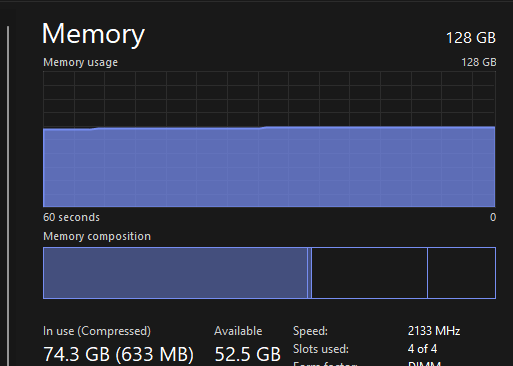
So I interested to trying to deploy latest release of VMware Cloud Foundation (VCF) 5.0 on my Windows 11 Home PC witch have 128GB and 16 core intel cpu.

William Lee wrote a nice artikel about VMware Cloud Foundation 5.0 running on Intel NUC

Disclaimer: This is not officially supported by VMware, please use at your own risk.

Requirements:

  • VMware Cloud Builder 5.0 OVA (Build 21822418)
  • VCF 5.0 Licenses Through VMUG ADVANTAGE
  • Home PC (Not Special Hardware)
    – 128GB Memory
    – Intel 12600 CPU
    – 4TB of NVME Storage
  • Windows 11 with VMware Workstation 17

Setup

Virtual Machines

  • DC02 (Domain Controller, DNS Server) (4GB 2vcpu)
  • VCF-M01-ESX01 (ESXi 8.0 Update 1a) (64GBGB 1x140GB 2x600NVME 2x NIC) (Every Thin Provisiond)
  • VCF-M01-CB01 (4GB and 4CPU) Only needed through First Deploment

Network settings on my PC

  • 1 IP In my home network
  • 172.16.12.1 (To Fool Cloudbuilder)
  • 172.16.13.1 (To Fool Cloudbuilder)

Procedure:

Install en Configure ESXi

Step 1 – Boot up the ESXi installer from de iso mount and then perform a standard ESXi installation.

Step 2 – Once ESXi is up and running, you will need to minimally configure networking along with an FQDN (ensure proper DNS resolution), NTP and specify which SSD should be used for the vSAN capacity drive. You can use the DCUI to setup the initial networking but recommend switching to ESXi Shell afterwards and finish the require preparations steps as demonstrated in the following ESXCLI commands:

esxcli system ntp set -e true -s pool.ntp.org
esxcli system hostname set –fqdn vcf-m01-esx01.wardvissers.nl

Note: Use vdq -q command to query for the available disks for use with vSAN and ensure there are no partitions residing on the 600GB disks.
Don’t change time server pool.ntp.org.

To ensure that the self-signed TLS certificate that ESXi generates matches that of the FQDN that you had configured, we will need to regenerate the certificate and restart hostd for the changes to go into effect by running the following commands within ESXi Shell:

/bin/generate-certificates
/etc/init.d/hostd restart

Cloudbuilder Config

Step 3 – Deploy the VMware Cloud builder in a separate environment and wait for it to be accessible over the browser. Once CB is online, download the setup_vmware_cloud_builder_for_one_node_management_domain.sh setup script and transfer that to the CB system using the admin user account (root is disabled by default).

Step 4 – Switch to the root user and set the script to have the executable permission and run the script as shown below

su –
chmod +x setup_vmware_cloud_builder_for_one_node_management_domain.sh
./setup_vmware_cloud_builder_for_one_node_management_domain.sh

The script will take some time, especially as it converts the NSX OVA->OVF->OVA and if everything was configured successfully, you should see the same output as the screenshot above.

A screenshot of a computerDescription automatically generated

Step 4 – Download the example JSON deployment file vcf50-management-domain-example.json and and adjust the values based on your environment. In addition to changing the hostname/IP Addresses you will also need to replace all the FILL_ME_IN_VCF_*_LICENSE_KEY with valid VCF 5.0 license keys.

Step 5 – The VMnic in the Cloud Builder VM will acked als a 10GB NIC so I started the deployment not through powershell but normal way in Cloud Builder GUI.

Your deployment time will vary based on your physical resources but it should eventually complete with everything show success as shown in the screenshot below. (I have one retry for finish)
A screenshot of a computerDescription automatically generated A screenshot of a cloud supportDescription automatically generated
Here are some screenshots VCF 5.0 deployment running on my home PC.

A screenshot of a computerDescription automatically generated

A screenshot of a computerDescription automatically generated

Problems

Check this if you have problems logging in NSX:
https://www.wardvissers.nl/2023/07/26/nsx-endless-spinning-blue-cirle-after-login/

Next Steps.

1. Reploy with use of the Holo-Router https://core.vmware.com/resource/holo-toolkit-20-deploy-router#deploy-holo-router

2. Testing if can deploy Single Host VCF Workload Domain, on same way by following this blog post HERE! 😁
A screenshot of a computerDescription automatically generated

If I can start another 64GB ESXi Server.

HPE Oneview Powershell Clear Alerts

You need: https://github.com/HewlettPackard/POSH-HPOneView/wiki

################################################################
#
#Naam:              Oneview Clear Alarms
#Version:           0.1
#Author:            Ward Vissers
################################################################


# Adding PowerCLI core snapin, also check if powerCLI module is alsready added

if (!(get-module -name HPOneView.400 -erroraction silentlycontinue)) {
import-module HPOneView.400 | out-null
}


$oneviewserver = “oneview.wardvissers.nl”
Connect-HPOVMgmt -Hostname $oneviewserver
Get-HPOVAlert | Set-HPOVAlert -Cleared
Get-HPOVAlert -State Active | Set-HPOVAlert -Cleared

Deploy Multi VM’s based on Windows Template

I love powershell. I created a little script to deploy multi VM based on a Windows Template throug CSV file.

It’s create a computer account at the specfified ou. He greates also a Domain Local Group for management. (It used in the customization not specified here)

TempVMlist.csv

server,cpu,memory,DestinationCluster,OSCustomizationSpec,VMtemplate,adgroup

WARDTEST01,2,8,CLUSTER01,W2012R2_Demo,TPL_W2012R2_STD,ServerAdmin

MultiVM.ps1

#Filename: MultiVM.ps1

#Author: W. Vissers

#Source:

#Version: 1.1

#Date: 08-05-2018

#ChangeLog:

# V1.0 – Module Active Directory

#      – Module VMware PowerCli

#      – Active Directory Computer Account, Group

#      – Host Selected from Cluster with Least Memory

#      – Storage selection based on volume with most free space

# V1.1 – Added Harddisk 1&2

#      – Changed porte group other vlan

#

<#

.SYNOPSIS

Script to create a virtual machine from template

.DESCRIPTION

Script to create a virtual machine from template

.EXAMPLE

MultiVM.ps1

#>

################################## INIT #################################################

# LoadModule Active Directory

if (!(Get-Module “activedirectory”)) {Import-module activedirectory}

Else {Write-Host “Module Active Directory is al ready loaded”}

# LoadModule VMware PowerCLI

# if (!(Get-Module “VMware.PowerCLI”)) {

#    Find-Module VMware.PowerCLI

#    Install-Module -Name VMware.PowerCLI -Scope CurrentUser

#}

#Else

# {

# Write-Host “Module PowerCLI is al ready loaded”

# }

#Config

$ouservers=”OU=Servers,DC=wardvissers.nl,DC=nl”

$ougroup=”OU=GroepObjecten,DC=wardvissers,DC=nl”

$folder=”Applicatie Servers”

$DestinationVC =”vcenter01.wardvissers.nl

#Username

if (!$username ) { $username = Read-Host “Give vCenter username ‘wardvissers\admin'”}

#Password

if ( -NOT $Password ) {

$PasswordSec = Read-Host “Give vCenter password” -AsSecureString

$Password = [Runtime.InteropServices.Marshal]::PtrToStringAuto([Runtime.InteropServices.Marshal]::SecureStringToBSTR($PasswordSec))

}

#Connect vCenter

$ConnectVC = Connect-VIServer $DestinationVC -Username $Username -Password $Password -AllLinked

$AllVMs = @()

$AllVMs = Import-Csv “D:\TempVMlist.csv”

foreach ($vm in $AllVMs) {

#Haal De Gegevens op

$server=$($vm.server)

$memory=$($vm.memory)

$cpu=$($vm.cpu)

$DestinationCluster=$($vm.DestinationCluster)

$OSSpec=”$($vm.OSCustomizationSpec)”

$VMtemplate=$($vm.VMtemplate)

$group=$($vm.adgroup)

$harddisk1=$($vm.harddisk1)

$harddisk2=$($vm.harddisk2)

Write-Host “$server heeft $memory GB memory en $cpu cpu(‘s)”

if ($server.length -gt 15) {

Write-Output “Hostname cannot contain more than 15 characters.”

$server = Read-Host “Re-enter hostname for host $server”}

Else

{

Write-Host “Server is umc server”

#Maak AD Groep aan en Computer Account

New-ADComputer -Name $server -Path $ouservers -Enabled $true

New-ADGroup -Name “DLG.$server” -SamAccountName “DLG.$server” -GroupCategory Security -GroupScope DomainLocal -DisplayName “DLG.$server” -Path $ougroup

Add-ADGroupMember -Identity “DLG.$server” -Members $group

}

# Rol server uit van Template

# Select the host with the less used memory

$DestinationHost = Get-Cluster –Name $DestinationCluster –Server $DestinationVC | Get-VMhost -State Connected | Sort-Object -Property MemoryUsageGB | Select-Object -First1

# Select DataStore with the most free space and not in maintance

$destinationDatastore = Get-Cluster $DestinationCluster | Get-Datastore | Where {$_.State -ne “Maintenance”} | Sort-Object -Property FreeSpaceGB -Descending | Select-Object -First 1

# Finally, I deploy my VM with the New-VM cmdlet using my template and OS specs. I place the VM on the ESXi host and store the VM on the datastore.

New-VM -Name $server -Template $VMTemplate -OSCustomizationSpec $OSSpec -VMHost $DestinationHOST -Datastore $DestinationDatastore -Location $folder

Get-VM $server | Set-VM -NumCpu $cpu -MemoryGB $memory -Confirm:$false

if ($harddisk1 -gt 60){Get-HardDisk -vm $server | Where {$_.Name -eq “Hard disk 1”} | Set-HardDisk -CapacityGB $harddisk1 -Confirm:$false}

if ($harddisk2 -gt 20) {Get-HardDisk -vm $server | Where {$_.Name -eq “Hard disk 2”} | Set-HardDisk -CapacityGB $harddisk2 -Confirm:$false}

Get-VM $server | Start-VM -Confirm:$false

Get-VM $Server | Get-NetworkAdapter | Set-NetworkAdapter -Connected $true -Confirm:$false

}

RVtools 3.10 Released

Version 3.10 (February, 2018)
– Upgraded RVTools solution to Visual Studio 2017
– Upgraded RVTools to .Net Framework version 4.6.1
– Upgraded Log4net to version 2.0.8, Waffle.AD to version 1.8.3
and NPOI to version 2.3.0
– Connection error when TLSv1.0 and TLSv1.1 are disabled and only TLSv1.2 is
enabled is solved by using .Net Framework 4.6.1
– vInfo tab page new columns: The latency-sensitivity setting of the virtual
machine, Change Block Tracking (CBT) and disk.EnableUUID values
– vDisk tab page new columns: SCSI label, unit number and sharedBus
– vHost tab page new columns: Assigned License(s), ATS heartbeat, ATS locking
values. 0 = disabled 1 = enabled, Host Power Policy shortname, CPU Power
Management current policy and CPU power hardware support
– When Export to xlsx is executed a metadata worksheet with version number of
RVTools and date time stamp is added to the output xlsx file
– All columns in the RVTools export xlsx file(s) now have a filter
– When export to csv newline characters are replaced by spaces
– When started from cli and login fails an error message and login box was
displayed. Now RVTools will exit with exit code -1, without showing the error
message and login form.
– Added an example PowerShell script with which you can merge RVTools export
xlsx files
– Added a example PowerShell script to start Export all to xlsx for multiple vCenters
– vDatastore tab page: For NFS datastores the address column is now filled with
remote host and path info
– vDatastore tab page new columns: Datastore Cluster Name, Cluster capacity and
Cluster free space
– The upper limit on the Health check for number of VMs on a datastore is now
9999
– vHealth tab page: new column “message type” which can be used as a filter in
Excel
– vHealth tab page: hbrdisk.RDID files are no longer reported as possible zombie
files
– vHealth tab page: low disk space messages no also show the free space in MB.
– All tab pages: Refresh or auto-refresh will respect your sort order
– CLI export2xls parameters changed to export2xlsx (old parameter will still work)
– Bug Fix: invalid “Horizontal Alignment” value in xlsx style sheet.
– Bug Fix: Calculation of total snapshot size was not always correct
– Bug Fix: Child snapshot hierarchy was not always correct
– Default installation directory is changed to C:\Program Files
(x86)\RobWare\RVTools without the version number

Documentation

Download

Install VMware PowerCli

1. Install the Powershell Get Module

Installing items from the Gallery requires the latest version of the PowerShellGet module, which is available in Windows 10, in Windows Management Framework (WMF) 5.0, or in the MSI-based installer (for PowerShell 3 and 4).

With the latest PowerShellGet module, you can:

Supported Operating Systems

The PowerShellGet module requires PowerShell 3.0 or newer.

Therefore, PowerShellGet requires one of the following operating systems:

  • Windows 10
  • Windows 8.1 Pro
  • Windows 8.1 Enterprise
  • Windows 7 SP1
  • Windows Server 2016
  • Windows Server 2012 R2
  • Windows Server 2008 R2 SP1

PowerShellGet also requires .NET Framework 4.5 or above. You can install .NET Framework 4.5 or above from here.

2. Find-Module -Name VMware.PowerCLI

3. Install-Module -Name VMware.PowerCLI -Scope CurrentUser

4. When you start Powershell VMware.Powershell is automatically loaded

VMware Disk to Windows Disk Script

vCenter01

Credentials

ClusterNode

virtuelemachine

DiskInfo

Script: VMwareDisktoWindows.ps1

# VMware to Windows Disk Script                                    
#                                                                                                   
# Author     : Ward Vissers                                                                                
# created on : 08-11-2017                                                                                  
# version    : V1.0                                                                                         
# Source     : http://www.enterprisedaddy.com/2016/07/powercli-match-windows-disk-to-vmware-harddisk/  
#
# V0.1 Testing
# V0.2 Line 33 $vm to $vm.name(Bug Found)
# V0.3 Graphical Version Select VM
# V0.4 Add Select VM from Cluster
# V1.0 Add Selection of multiple vCenter                                                                                                      
#
# $VCServerList is a comma-separated list of vCenter servers
$VCServerList = “vCenter01.wardvissers.nl”
# Select vCenter
$VCServer = $VCServerList | Out-GridView -Title “Select vCenter Server” -OutputMode Single
# write-host $VCServer
$Cred = Get-Credential
# Write-Host $Cred
 
# Set Default Server Mode to Multiple
Set-PowerCLIConfiguration -DefaultVIServerMode Multiple -Confirm:$false | Out-Null
# Connect to vCenter Server(s)
Connect-VIServer -Server “$VCServer” | Out-Null
$DiskInfo= @()
# Select Cluster
$Cluster = Get-Cluster | Out-GridView -Title “Select Target Cluster Node” -OutputMode Single
# write-host $Cluster
# Select VM From Cluster
$Vm = Get-Cluster $Cluster | Get-VM | Out-GridView -Title “Select Virtuele Machine” -OutputMode Single
# write-host $vm

if (($VmView = Get-View -ViewType VirtualMachine -Filter @{“Name” = $Vm.Name})) {
  $WinDisks = Get-WmiObject -Class Win32_DiskDrive -Credential $Cred -ComputerName $VmView.Name
  foreach ($VirtualSCSIController in ($VMView.Config.Hardware.Device | where {$_.DeviceInfo.Label -match “SCSI Controller”})) {
foreach ($VirtualDiskDevice in ($VMView.Config.Hardware.Device | where {$_.ControllerKey -eq $VirtualSCSIController.Key})) {
  $VirtualDisk = “” | Select SCSIController, DiskName, SCSI_Id, DiskFile, DiskSize, WindowsDisk
  $VirtualDisk.SCSIController = $VirtualSCSIController.DeviceInfo.Label
  $VirtualDisk.DiskName = $VirtualDiskDevice.DeviceInfo.Label
  $VirtualDisk.SCSI_Id = “$($VirtualSCSIController.BusNumber) : $($VirtualDiskDevice.UnitNumber)”
$VirtualDisk.DiskFile = $VirtualDiskDevice.Backing.FileName
  $VirtualDisk.DiskSize = $VirtualDiskDevice.CapacityInKB * 1KB / 1GB
  # Match disks based on SCSI ID
  $DiskMatch = $WinDisks | ?{($_.SCSIPort – 2) -eq $VirtualSCSIController.BusNumber -and $_.SCSITargetID -eq $VirtualDiskDevice.UnitNumber}
  if ($DiskMatch){
  $VirtualDisk.WindowsDisk = “Disk $($DiskMatch.Index)”
}
else {Write-Host “No matching Windows disk found for SCSI id $($VirtualDisk.SCSI_Id)”}
  $DiskInfo += $VirtualDisk
  }
  }
  $DiskInfo | Out-GridView
  }
  else {Write-Host “Virtual Machine $Vm Not Found”}

Disconnect-VIServer * -Confirm:$false

Translate »