Mitigating Secure Boot Risks in 2026: A Comprehensive Guide

In June 2026 Secure boot certs start to going to expire for physical en virtual machines Servers en Clients. PS not only Windows but also Linux!!

PS. Make sure Client en Servers all installed with latest updates!!

Made a little Risk Assessment:

The expiration and replacement of Microsoft Secure Boot certificates pose a high risk to IT environments. If not properly managed, systems may fail to boot, updates may fail, and security risks may increase. This is particularly critical in automated and virtualized environments.

Key risks:

 Systems failing to boot after updates
 Incompatibility during OS or hypervisor upgrades
 Increased security risks due to outdated certificates

Recommended actions:

1.Update firmware and Secure Boot certificates
2.Test all workloads in a lab environment
3.Update golden images and automation pipelines

A phased rollout and proper validation are essential to prevent disruptions.

1. Scope

This document describes the risks, impact, and mitigations related to the expiration of Microsoft Secure Boot certificates in enterprise environments.

2. Affected Components

 Systems with UEFI firmware (Servers, Desktops, Virtual Machines)
 Microsoft UEFI CA certificates
 Operating Systems (Servers, Clients) (Windows, Linux)
 Automation tools like (Packer, MDT, SCCM)

3. Risk Analysis

Key risks:

 Incompatibility during upgrades
 Security vulnerabilities caused by outdated trust stores
 Errors in automation pipelines
 Firmware incompatibility

4. Risk Matrix

 Upgrade Issues: High
 Security Exposure: High
 Automation Failures: Medium
 Firmware Issues: High

5. Mitigations

 Update firmware on all systems
 Apply Microsoft Secure Boot updates
 Verify Event ID 1808
 Rebuild images with updated certificates
 Perform a phased rollout

6. Validation & Testing

 Test OS boot scenarios
 Validate Secure Boot status
 Verify automation pipelines

7. Conclusion

Changes to Secure Boot certificates must be treated as critical infrastructure updates. Proper preparation, testing, and phased implementation are essential to avoid disruptions.

.Microsoft has released patch’s for the following OS.

Windows 11 (23H2/24H2/25H2)
Windows Server 2016/2019/2022/2025.

VMware is creating a “Fix or Update” for this

* I did not test versions with extended support like Windows 2012 R2 and Windows 10.

Get your list with:
Get-VM | Where-Object { $_.ExtensionData.Config.Firmware -eq “efi” -and

$_.ExtensionData.Config.BootOptions.EfiSecureBootEnabled } | Select-Object Name,

   @{N=”OS”;E={$_.ExtensionData.Guest.GuestFullName}},  PowerState

There is a updated coming from VMware by Broadcom: Check this article:     @{N=”OS”;E={$_.ExtensionData.Guest.GuestFullName}},  PowerState

https://knowledge.broadcom.com/external/article/423893

Extra Info

Microsoft Info:

I hope that most People have Read: Windows Secure Boot certificate expiration and CA updates

and Secure Boot playbook for certificates expiring in 2026

Redhat:
Secure Boot Certificate Changes in 2026: Guidance for RHEL Environments

Broadcom:
Secure Boot Certificate Expirations and Update Failures in VMware Virtual Machines

Manual Update of the Secure Boot Platform Key in Virtual Machines


Deploy Windows Core Server 2022 with Server Core App Compatibility Feature on Demand with Packer

I while ago I started with parker to create simple templates for use in my homelab.

It take some time to find the rights scripts and learning en understanding the HCL2 coding

But in related to Security reasons I want to use a Windows Core Server the smaller footprint.

What is Server Core App Compatibility Feature on Demand: https://learn.microsoft.com/en-us/windows-server/get-started/server-core-app-compatibility-feature-on-demand

Installing Features on Demand through Powerschell contains a bug. You may see “failure to download files”, “cannot download”, or errors like “0x800F0954” or file not found.

To Solve that I created I powerschell script to run the install twice: featuresondemand.ps1

You can find al the needed files on my Public Github Packer repository: https://github.com/WardVissers/Packer-Public

When running is showing like this:

A blue screen with white squaresDescription automatically generated

It works for now, but there is one thing that would the hole thing a quiet nicer.
Passwords encrypted in a separate file.

Windows 2012 DirectAccess Quick & Dirty

Install Server 2012. Join Server to your Domain.

image

Select Behind an Edge Device
Public name voor mij is dat is: thuis.wardvissers.nl

image

Remote Access Review & Next
image
View Remote Access Review

image

Finish

image

Overview

image

image

Policy’s

image

Windows 8 Client

image

I have a Firewall/NAT router. So you need open some ports
image


DirectAccess works great. Every where I work I have access to my docs & email.

Core Configurator 2.0 (Windows Server 2008 R2)

Core Configurator V2 is beschibaar voor Windows Server 2008 R2 Core editie

image

Core Configuration taken omvatten:

  • Product Licensing
  • Netwerkfuncties
  • Dcpromo
  • ISCSI Instellingen
  • Server rollen en functies
  • Gebruiker en Groepsrechten
  • Share aanmaken en Verwijderen
  • Dynamische Firewall-instellingen
  • Display | Screensaver Instellingen
  • Toevoegen & Verwijderen Drivers
  • Proxyinstellingen
  • Windows Updates (Inclusief WSUS)
  • Multipath I / O
  • Hyper-V inclusief virtuele machine
  • Join Domain en Computer her noemen
  • Toevoegen / verwijderen programma’s
  • Services
  • WinRM
  • Volledige logging van alle commando’s die worden uitgevoerd.

Downloaden doe je HIER

Quick Reference voor Server Core Installaties voor 2008 & R2 edities

Handige samenvattingen van de meest voorkomende procedures en commando’s gebruikt om de Server Core installaties beheren. Klik op het plaatje om bij de download te komen.
image image

Windows 2008 Core Read Only Domain Controller Script

1. Enter the productkey:
slmgr.vbs -ipk xxxxx-xxxxx-xxxxx-xxxxx-xxxxx

2. Activate:
slmgr.vbs -ato

3. Show activation:
slmgr.vbs -dli

4. Rename the computer:
Netdom renamecomputer WIN-???????? /newname:W2K8RDC01 /reboot:15
(use the command set to view all the variables used by Microsoft Windows)

5. Show all network interfaces:
Netsh interface ipv4 show interface

6. Set a static IP address:
Netsh interface ipv4 set address name=2 source=static address=xxx.xxx.xxx.xxx mask=255.255.255.0 gateway=xxx.xxx.xxx.xxx
(make sure that you’re choosing the right network interface. In this example it’s 2, so name=2 it means interface 2)

7. Set a static DNS server:
Netsh interface ipv4 add dnsserver name=2 address=xxx.xxx.xxx.xxx index=1

8. Turn Remote Desktop (RDP) on:
Cscript %windir%system32SCRegEdit.wsf /ar 0

9. Enable Remote Desktop (RDP) in the Windows Firewall:
netsh advfirewall firewall set rule group=”remote desktop” new enable=yes

10. Enable Remote Management (RemoteCMD) in the Windows Firewall:
netsh firewall set service type=remoteadmin mode=enable 

11. Join the domain:
Netdom join W2K8RDC01 /domain:adtest.local /usero:administrator /passwordo:*
(This step is only for joining a member server to the domain. For a Domain Controller go to step 12)

12. Preparing the promotion to a Read Only Domain Controller:
We need to create a unattend.txt that we are going to use by the DCPROMO. So let’s create a new textfile, type notepad

13. Making the unattended.txt:
Copy and past the following test into the new textfile and save this file on the C: drive of the Core Server.

==================================================
[DCInstall]
InstallDNS=Yes
ConfirmGc=Yes
CriticalReplicationOnly=No
DisableCancelForDnsInstall=No
RebootOnCompletion=Yes
ReplicaDomainDNSName=adtest.local
ReplicaOrNewDomain=ReadOnlyReplica
ReplicationSourceDC=win2k8dc01.adtest.local
SafeModeAdminPassword=******************
SiteName=Default-First-Site-Name
UserDomain=adtest.local
UserName=administrator
Password=******************
RebootOnCompletion=Yes
==================================================
14) Run the DCPROMO
dcpromo /unattend:c:unattend.txt

Windows 2008 Core Configurator Download


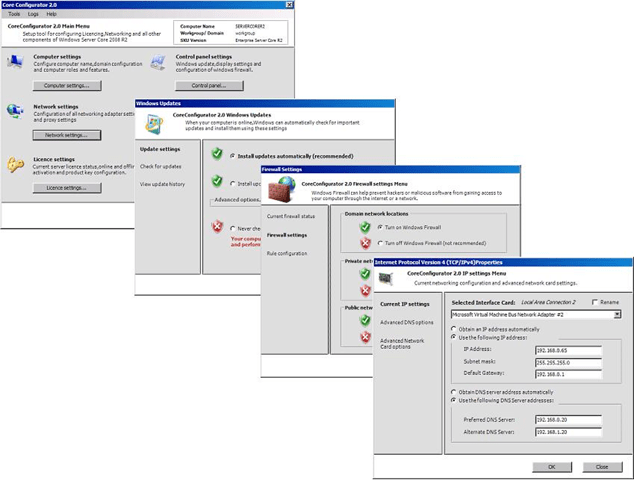
Ik vond een nice tooltje om Windows Core mee te configureren. Het tootlje is gemaakt door voormalig MVP Guy Teverovsky. Het tooltje heet dan ook Core Configurator.
Hij geeft dit tooltje gemaakt in prive tijd maar dit heeft dit van zijn voormalige werkgever of line moeten halen. Zie het verhaal hier.

Hoezo voor malig MVP: Hij heeft zijn MVP Titel moeten inleveren toen hij voor Microsoft ging werken in Isreal.

Downloaden:
CoreConfigurator.cab
Coreconfigurator.zip

En zo ziet het tooltje er uit:
coreconfigurator

Translate »