Removal of SD card/USB as a standalone boot device option after vSphere 7.x

On the 16th of September, a KB article was published by VMware, which contains statements of Removal of SD card/USB as a standalone boot device option.

USB/SD is not the right choice going forward! Why? The volume of reads/writes to and from the OS-DATA partition continues to increase with every release, which means that the lower grade devices will simply wear out faster.

Options for future versions of ESXi ( after 7.x)

When you buy new hardware make sure to have a proper persistent storage device,
Like a Dell Boss Card card  or HPE OS boot Devices

Options for 7.x

What are the fixes that will help with SD/USB issues that customers are seeing?
https://kb.vmware.com/s/article/83963
https://docs.vmware.com/en/VMware-vSphere/7.0/rn/vsphere-esxi-70u2c-release-notes.html
  (Please look for USB device and Storage stack issues fixed with this release)

SD Card Boot issue Solution in ESXi 7.x

Issue The host goes into an un-responsive state due to: “Bootbank cannot be found at path ‘/bootbank” and boot device is in an APD state.

This issue is seen due to the boot device failing to respond & enter APD state (All paths down). Some cases, Host goes to non-responsive state & shows disconnected from vCenter.

As of 7.0 Update 1, the format of the ESX-OSData boot data partition has been changed. Instead of using FAT it is using a new format called VMFS-L. This new format allows much more and faster I/O to the partition. The level of read and write traffic is overwhelming and corrupting many less capable SD cards.

The action plan for future resolution would be to replace the SD card/s with a capable device/disk. Per the best practices mentioned on Installation guide.

The version 7.0 Update 2 VMware ESXi Installation and Setup Guide, page 19, specifically says “As even read-only workloads can cause problems on low-end flash devices, you should install ESXi only on high-endurance flash media“.

https://docs.vmware.com/en/VMware-vSphere/7.0/vsphere-esxi-702-installation-setup-guide.pdf

You can also refer to the below KB:

Reference: https://kb.vmware.com/s/article/83376?lang=en_US

Resolution

VMware engineering has a fix that will be in the next release.  Planned for July 2021.

https://communities.vmware.com/t5/ESXi-Discussions/SD-Boot-issue-Solution-in-7-x/m-p/2852027

https://www.provirtualzone.com/vsphere-7-update-2-loses-connection-with-sd-cards-workaround/

Upcoming change (March 2020) – Microsoft to disable use of unsigned LDAP port 389

In March 2020, Microsoft is going to release a update which will essentially disable the use of unsigned LDAP which will be the default. This means that you can no longer use bindings or services which binds to domain controllers over unsigned ldap on port 389. You can either use LDAPS over port 636 or using StartTLS on port 389 but it still requires that you addd a certificate to your domain controllers. This hardening can be done manually until the release of the security update that will enable these settings by default.

How to add signed LDAPS to your domain controllers

You can read more about the specific change here –> https://support.microsoft.com/en-us/help/4520412/2020-ldap-channel-binding-and-ldap-signing-requirement-for-windows you can also read more here –> https://techcommunity.microsoft.com/t5/core-infrastructure-and-security/ldap-channel-binding-and-ldap-signing-requirements-update-now/ba-p/921536

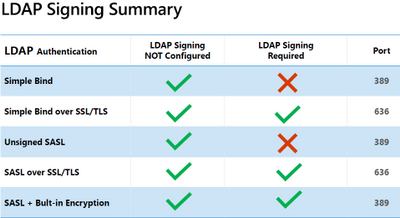
After the change the following features will be supported against Active Directory.

clipboard_image_0.png

How will this affect my enviroment?

Clients that rely on unsigned SASL (Negotiate, Kerberos, NTLM, or Digest) LDAP binds or on LDAP simple binds over a non-SSL/TLS connection stop working after you make this configuration change. This also applies for 3.party solutions which rely on LDAP such as Citrix NetScaler/ADC or other Network appliances, Vault and or authentication mechanisms also rely on LDAP. If you haven’t fixed this it will stop working. This update will apply for all versions.

Windows Server 2008 SP2,
Windows 7 SP1,
Windows Server 2008 R2 SP1,
Windows Server 2012,
Windows 8.1,
Windows Server 2012 R2,
Windows 10 1507,
Windows Server 2016,
Windows 10 1607,
Windows 10 1703,
Windows 10 1709,
Windows 10 1803,
Windows 10 1809,
Windows Server 2019,
Windows 10 1903,
Windows 10 1909

How to check if something is using unsigned LDAP?

If the directory server is configured to reject unsigned SASL LDAP binds or LDAP simple binds over a non-SSL/TLS connection, the directory server will log a summary under eventid 2888 one time every 24 hours when such bind attempts occur. Microsoft advises administrators to enable LDAP channel binding and LDAP signing as soon as possible before March 2020 to find and fix any operating systems, applications or intermediate device compatibility issues in their environment.

You can also use this article to troubleshoot https://docs.microsoft.com/en-us/archive/blogs/russellt/identifying-clear-text-ldap-binds-to-your-dcs

Credits: https://msandbu.org/upcoming-change-microsoft-to-disable-use-of-unsigned-ldap-port-389/

Ultimate Cross vCenter Script

Last year i attend the Dutch VMUG (NLVMUG) i followed session from

Michael Wilmsen that was: Migrate your datacenter without downtime.

I must also move al lot of VM’s from different datacenters to other datacenters.
I use the script from Michael Wilmsen to move the VM’s. But along the way I counter some problems with this script. So I begon tweaking and tweaking and tweaking this script to create for me the ultimate Cross vCenter PowerCLI Script.

Coolfeatures:
– Info through Whattsapp (Default not enabled)
– Dryrun (Test Run)
– Logging
– Selection through GUI
– Multiple Nic support maximum of 4.
– Datastore en Host selection based on Free space en Free Memory
– Check of Destination Host or Datastore in Maintance
– Destination Store exist in Destination Cluster

MoveVM.ps1:
#Filename: MoveVM.ps1
#Author: M. Wilmsen / W. Vissers
#Source: http://virtual-hike.com/nlvmug-2018/
#Version: 2.0
#Date: 21-10-2018
#ChangeLog:
# V0.9 – M. Wilmsen First Version
# V1.0 – Fixed Multiple Nics to maximium of 4 nics
#      – Logfile name VM name
# V1.1 – Destination Cluster not the first Host
# V1.2 – Selected Destination host based on memory used
# V1.3 – Fixed folder location and VirtualPortGroup
# V1.4 – Fixed Datastore in Maintance
# V1.5 – Using Get-VICredentialStoreItem + Logpath Fixt
# V1.6 – Fixed Log in Hours in 24 uurs
# V1.7 – Fixed Using DatastoreCluster name based on Cluster name!
# V1.8 – Check if Destination has the same datastore
#          – Ask know for input
#          – VM selection with VMhost
#          – Fixed Ping Check
# v1.9 – Added Destination Store exist in Destination Cluster
# v2.0 – Fixed Destination Store exist in Destination Cluster
<#
.SYNOPSIS
Script to migrate a virtual machine
.DESCRIPTION
Script to migrate compute and storage from cluster to cluster. Log will be in current dir [VM]-[-timestamp].log

.EXAMPLE
MoveVM.ps1
#>
################################## INIT #################################################
#Set WebOperation timeout
# set-PowerCLIConfiguration -WebOperationTimeoutSeconds 3600
#Define Global variables
$location = “D:\xmovewhattsapp”
$LogPath = “.\”
$DataStoreClusterPrefix = “SAN-“
$SourceVC = Read-Host “Give Source vCenter”
$DestinationVC = Read-Host “Give Destination vCenter”
$DRSRecommendation = $true
$Dryrun = $false
$SendWhatsApp = $false
$WhatsAppNumbers = “0123456789”
$WhatsAppGroup = “Namehireyourwhattsgroup”
$instanceId = “23” #chang this line
$clientId = “demo@demo.nl” #change this line
$clientSecret = “Puthiersecretid” #change this line
################################## PASSWORD STORE ##############################################
#Username
# Check if credentials exist in credential store if not ask for credentials and put them in credential store

If ((Get-VICredentialStoreItem).host -notcontains $SourceVC) {New-VICredentialStoreItem -Host $SourceVC -User $env:USERNAME -Password ((get-credential).GetNetworkCredential().Password)}
If ((Get-VICredentialStoreItem).host -notcontains $DestinationVC) {New-VICredentialStoreItem -Host $DestinationVC -User $env:USERNAME -Password ((get-credential).GetNetworkCredential().Password)}

# Remove-VICredentialStoreItem * -Confirm:$false

################################## END INIT #################################################
################################## FUNCTIONS #################################################
#Define log function
Function LogWrite
{
    Param ([string]$logstring)
    #Add logtime to entry
    $LogTime = Get-Date -Format “MM-dd-yyyy_HH-mm-ss”
    $logstring = $LogTime + ” : ” + $logstring
    #Write logstring
    Add-content $LogFile -value $logstring
    Write-Host $logstring
}
#Define SendWhatsApp function
Function SendWhatsApp
{
   Param ([string] $message)
  
   if ( $SendWhatsApp ) {
     $LogTime = Get-Date -Format “MM-dd-yyyy_hh-mm-ss”
     $message = $logtime + ” : ” + $message
    
     foreach ( $number in $WhatsAppNumbers )
     {
        $jsonObj = @{‘group_admin’=$number;
                     ‘group_name’=$WhatsAppGroup;
                     ‘message’=$message;}
       Try {
         $res = Invoke-WebRequest -Uri “http://api.whatsmate.net/v2/whatsapp/group/message/$instanceId” `
                           -Method Post   `
                           -Headers @{“X-WM-CLIENT-ID”=$clientId; “X-WM-CLIENT-SECRET”=$clientSecret;} `
                           -Body (ConvertTo-Json $jsonObj)
         LogWrite “WhatsMate Status Code: ”  $res.StatusCode
         LogWrite $res.Content
       }
       Catch {
         $result = $_.Exception.Response.GetResponseStream()
         $reader = New-Object System.IO.StreamReader($result)
         $reader.BaseStream.Position = 0
         $reader.DiscardBufferedData()
         $responseBody = $reader.ReadToEnd();

        Write-host “Status Code: ” $_.Exception.Response.StatusCode
         Write-host $message
         }
     }
   }
}

function Get-VmSize($vm)
{
     #Initialize variables
     $VmDirs =@()
     $VmSize = 0
     $searchSpec = New-Object VMware.Vim.HostDatastoreBrowserSearchSpec
     $searchSpec.details = New-Object VMware.Vim.FileQueryFlags
     $searchSpec.details.fileSize = $TRUE
     Get-View -VIObject $vm | % {
         #Create an array with the vm’s directories
         $VmDirs += $_.Config.Files.VmPathName.split(“/”)[0]
         $VmDirs += $_.Config.Files.SnapshotDirectory.split(“/”)[0]
         $VmDirs += $_.Config.Files.SuspendDirectory.split(“/”)[0]
         $VmDirs += $_.Config.Files.LogDirectory.split(“/”)[0]
         #Add directories of the vm’s virtual disk files
         foreach ($disk in $_.Layout.Disk) {
             foreach ($diskfile in $disk.diskfile){
                 $VmDirs += $diskfile.split(“/”)[0]
             }
         }
         #Only take unique array items
         $VmDirs = $VmDirs | Sort | Get-Unique
         foreach ($dir in $VmDirs){
             $ds = Get-Datastore ($dir.split(“[“)[1]).split(“]”)[0]
             $dsb = Get-View (($ds | get-view).Browser)
             $taskMoRef  = $dsb.SearchDatastoreSubFolders_Task($dir,$searchSpec)
             $task = Get-View $taskMoRef
             while($task.Info.State -eq “running” -or $task.Info.State -eq “queued”){$task = Get-View $taskMoRef }
             foreach ($result in $task.Info.Result){
                 foreach ($file in $result.File){
                     $VmSize += $file.FileSize
                 }
             }
         }
     }
     return $VmSize
}
################################## END FUNCTIONS #################################################
#Login to vCenter servers
if (($global:DefaultVIServers).Name -notcontains $SourceVC -or $DestinationVC) {

#SourceVC
$ConnectVC = Connect-VIServer $SourceVC
$Message = “Connecting to ” + $ConnectVC  + ” as ” + $env:USERNAME
#Logwrite $Message
#DestionationVC
$ConnectVC = Connect-VIServer $DestinationVC
$Message = “Connecting ” + $ConnectVC + ” as ” + $env:USERNAME
#Logwrite $Message

# Disconnect-VIServer * -Confirm:$false

}
Set-Location $location

$cluster=Get-Cluster -Server $SourceVC  | Out-GridView -OutputMode Single -Title “Select Source Cluster”
$vmtomigrate =Get-Cluster $cluster -Server $SourceVC | Get-VM | Out-GridView -OutputMode Single -Title “Select VM”
$DestinationCluster = Get-Cluster -Server $DestinationVC | Out-GridView -OutputMode Single -Title “Select Destination Cluster”
$vmfolder=Get-folder -Server $DestinationVC | Out-GridView -OutputMode Single -Title “Select Folder”

#Main Script

    #Set $MigError to false befor migration
     $MigError = $false
     #Get VM variables
     $vm = get-vm $vmtomigrate
    
     #Define LogFile with time stamp
     $LogTime = Get-Date -Format “MM-dd-yyyy_hh-mm-ss”
    
     if([IO.Directory]::Exists($LogPath))
     {
     #Do Nothing!!
     }
     else
     {
     New-Item -ItemType directory -Path $LogPath
     }
     $LogFile = $LogPath+$VM+”-“+$LogTime+”.log”
    
     # LogWrite Gebruiker
    
     Logwrite $env:USERNAME

    # Get-VM Info   
    
     $VMHDDSize = Get-VmSize($vm)
     $VMHDDSize = [Math]::Round(($VMHDDSize / 1GB),2)

    Logwrite “Start Virtual Machine Move”
     #If WhatsApp make notice
     if ( $SendWhatsApp ) { LogWrite “Notifications will be send using WhatsApp to WhatsApp Group: $WhatsAppGroup” }
     #If DryRun make Notice
     if ( $Dryrun ) {
     Logwrite “Start move virtual machines $vm Disksize $VMHDDSize GB (DryRun)”
     SendWhatsApp “Start move virtual machines $vm Disksize $VMHDDSize GB(DryRun)”
     }
     else {
     Logwrite “Start move virtual machines $vm Disksize $VMHDDSize GB”
     SendWhatsApp “Start move virtual machines $vm Disksize $VMHDDSize GB”
     }
     $SourceCluster = get-vm $vm | Get-Cluster | select name
     $vmip = $vm  | Select @{N=”IP Address”;E={@($_.guest.IPAddress[0])}}
     $vmip = $vmip.”ip address”
     $VMHDDSize = Get-VmSize($vm)
     $VMHDDSize = [Math]::Round(($VMHDDSize / 1GB),2)
     $NetworkAdapter = Get-NetworkAdapter -VM $vm -Server $SourceVC
     $SourceVMPortGroup = Get-NetworkAdapter -vm $vm | Select NetworkName
     $switchname = $DestinationCluster
    

     $Datastore = Get-VM $vm | Get-DataStore -Server $sourceVC | Select @{N=”Name”;E={@($_.Name)}}
     $Datastore = $Datastore.Name
     $DatastoreExistinOthervCenter = Get-Cluster $DestinationCluster | Get-DataStore -Server $DestinationVC | ? {$_.Name -like “*$Datastore*”}

     if ($DatastoreExistinOthervCenter )
      {
      LogWrite  “Datastore exsist $DestinationCluster in  destination vCenter $DestinationVC “
      $destinationDatastore = $DatastoreExistinOthervCenter }
      Else
      {
      LogWrite  “Datastore does not exsist in $DestinationCluster destination vCenter $DestinationVC”
      # Select DataStore with the most free space and not in maintance
      $DatastoreCluster = “$DataStoreClusterPrefix”+”$DestinationCluster”
      $destinationDatastore = Get-DatastoreCluster $DatastoreCluster | Get-Datastore | Where {$_.State -ne “Maintenance”} | Sort-Object -Property FreeSpaceGB -Descending | Select-Object -First 1
      }

     $destinationDatastoreFreeSpace = $destinationDatastore | Select Name,@{N=”FreeSpace”;E={$_.ExtensionData.Summary.FreeSpace}}
      $destinationDatastoreFreeSpace = [Math]::Round(($destinationDatastoreFreeSpace.”FreeSpace” / 1GB),2)

    # Select the host with the less used memory
   
     $DestinationHost = Get-Cluster –Name $DestinationCluster –Server $DestinationVC | Get-VMhost -State Connected | Sort-Object -Property MemoryUsageGB | Select-Object -First 1
            
     # Change Here if you have a vm with multiple Network Cards (Remove the # for the multiple nics)
    
     if ($NetworkAdapter.Count-eq 1) {
         $DestinationVMPortgroup =@()
         $DestinationVMPortgroup += Get-VirtualPortGroup -Server $DestinationVC -Vmhost $DestinationHost | Out-GridView -OutputMode Single -Title “Select Nic1”
      }
     elseif ($NetworkAdapter.Count-eq 2) {
         $DestinationVMPortgroup =@()
         $DestinationVMPortgroup += Get-VirtualPortGroup -Server $DestinationVC -Vmhost $DestinationHost | Out-GridView -OutputMode Single -Title “Select Nic1”
         $DestinationVMPortgroup += Get-VirtualPortGroup -Server $DestinationVC -Vmhost $DestinationHost | Out-GridView -OutputMode Single -Title “Select Nic2”
     }
     elseif ($NetworkAdapter.Count-eq 3) {
         $DestinationVMPortgroup =@()
         $DestinationVMPortgroup += Get-VirtualPortGroup -Server $DestinationVC -Vmhost $DestinationHost | Out-GridView -OutputMode Single -Title “Select Nic1”
         $DestinationVMPortgroup += Get-VirtualPortGroup -Server $DestinationVC -Vmhost $DestinationHost | Out-GridView -OutputMode Single -Title “Select Nic2”
         $DestinationVMPortgroup += Get-VirtualPortGroup -Server $DestinationVC -Vmhost $DestinationHost | Out-GridView -OutputMode Single -Title “Select Nic3”
     }
     elseif ($NetworkAdapter.Count-eq 4) {
         $DestinationVMPortgroup =@()
         $DestinationVMPortgroup += Get-VirtualPortGroup -Server $DestinationVC -Vmhost $DestinationHost | Out-GridView -OutputMode Single -Title “Select Nic1”
         $DestinationVMPortgroup += Get-VirtualPortGroup -Server $DestinationVC -Vmhost $DestinationHost | Out-GridView -OutputMode Single -Title “Select Nic2”
         $DestinationVMPortgroup += Get-VirtualPortGroup -Server $DestinationVC -Vmhost $DestinationHost | Out-GridView -OutputMode Single -Title “Select Nic3”
         $DestinationVMPortgroup += Get-VirtualPortGroup -Server $DestinationVC -Vmhost $DestinationHost | Out-GridView -OutputMode Single -Title “Select Nic4”
     }

    LogWrite “Start move: $vm”
     Logwrite “VM IP: $vmip”
     Logwrite “VM Disk Used (GB): $VMHDDSize”
     Logwrite “VM Folder: $vmfolder”
     Logwrite “Source vCenter: $SourceVC”
     Logwrite “VM Source Cluster: $SourceCluster”
     Logwrite “Destination vCenter: $DestinationVC”
     Logwrite “VM Destination Cluster: $DestinationCluster”
     Logwrite “Destination host: $DestinationHost”
     LogWrite “VM Source PortGroup: $SourceVMPortGroup”
     LogWrite “VM Destination Portgroup: $DestinationVMPortgroup”
     Logwrite “VM Destination Datastore: $destinationDatastore”
     LogWrite “Destination Datastore FreeSpace GB: $destinationDatastoreFreeSpace “
     if ( $Dryrun ) {
       $FreespaceAfterMigration = $destinationDatastoreFreeSpace – $VMHDDSize
       if ( $FreespaceAfterMigration -lt 0 ) { Logwrite “ERROR: Datastore $destinationDatastore does not have sufficient freespace! Virtual Machine needs $VMHDDSize. Only $destinationDatastoreFreeSpace available.” }
       else { Logwrite “Virtual Machine will fit on datastore $destinationDatastore. Freespace after migration is: $FreespaceAfterMigration GB” }
     }
    #Test if VM responsed to ping
    if ($vmip -eq $null) {
     LogWrite “Virtual Machine ip address not known”
     Logwrite “No ping check will be performed after moving the Virtual Machine”
     }
    else {
         Test-Connection -comp $vmip -quiet
         LogWrite “Virtual Machine $vm response to ping before being moved. Virtual machine will be checked after being moved”
         $PingVM = $true
     }
      
     #if ( $VMHDDSize -eq
     if ( -NOT $Dryrun) {
       #Migrate VM to cluster
       LogWrite “Move $vm to vCenter $DestinationVC and datastore $DestinationDatastore”
       Try {
         $Result = Move-VM -VM $vm `
                            -Destination $DestinationHost `
                            -Datastore $DestinationDatastore `
                            -NetworkAdapter $NetworkAdapter `
                            -PortGroup $DestinationVMPortgroup `
                            -ErrorAction Stop
           }
       Catch {
         $ErrorMessage = $_.Exception.Message
         LogWrite “ERROR: Move of $vm to cluster $DestinationHost failed!!!”
         Logwrite “ERROR: Move Status Code:  $ErrorMessage”
         SendWhatsApp “ERROR: Move of $vm failed!!! $ErrorMessage”
         $MigError = $true   
       }
       #Migrate VM to folder
       LogWrite “Move $vm to vCenter $vmfolder”
       Try {
         $VMtemp = get-vm $vm
         $Result = Move-VM -VM $vmtemp -InventoryLocation $vmfolder -ErrorAction Stop
           }
       Catch {
         $ErrorMessage = $_.Exception.Message
         LogWrite “ERROR: Move of $vm to folder $vmfolder failed!!!”
         Logwrite “ERROR: Move Status Code:  $ErrorMessage”
         SendWhatsApp “ERROR: Move of $vm failed!!! $ErrorMessage”
         $MigError = $true   
         }
       }
    
     $MigError = $false
     #Test if VM is running on destination cluster
     if ( -NOT $MigError -AND -NOT $Dryrun ) {
       LogWrite “Check $vm is registered in $DestinationVC”
       try {
         $CheckVM = get-vm -name $vm -server $DestinationVC -ErrorAction Stop
 
         if ( $CheckVM ) {
           Logwrite “$vm registered in $DestinationVC”
         }
         else {
           Logwrite “ERROR: $vm not found in $DestinationVC”
         }
       }
       catch {
         $ErrorMessage = $_.Exception.Message
         Logwrite “ERROR: $vm not found in $DestinationVC”
         Logwrite “ERROR: $ErrorMessage”
         SendWhatsApp “ERROR move: $vm not found in $DestinationVC”
       }
     }
     #Test is VM response to ping, if $PingVM = $True
     if ($PingVM) {
       if (Test-Connection -comp $vmip -quiet) {
         LogWrite “Virtual Machine $vm response to ping after move”
         SendWhatsApp “Virtual Machine $vm response to ping after move”
       } 
     }
     sleep 1
     SendWhatsApp “Finished move action: $vm from $SourceVC to $DestinationVC”
     Logwrite “Finished move action: $vm from $SourceVC to $DestinationVC”

if ($DRSRecommendation)
  {
   Get-DrsRecommendation -Cluster $DestinationCluster -Server $DestinationVC | Apply-DrsRecommendation
   Logwrite “DRS Recommendatation applyed”
  }
Else
  {
  Logwrite “No DRS Recommendatation applyed”
  Write-Host “No DRS Recommendatation applyed”
  }  
 

#Disconnect from vCenter servers
Logwrite “Disconnect from vCenter servers $SourceVC $DestinationVC”
Disconnect-viserver $SourceVC -Confirm:$false
Disconnect-viserver $DestinationVC -Confirm:$false
Logwrite “Finished moving virtual machines, exiting…..”
SendWhatsApp “Finished moving virtual machines, exiting…..”
HPE Oneview Powershell Clear Alerts

You need: https://github.com/HewlettPackard/POSH-HPOneView/wiki

################################################################
#
#Naam:              Oneview Clear Alarms
#Version:           0.1
#Author:            Ward Vissers
################################################################


# Adding PowerCLI core snapin, also check if powerCLI module is alsready added

if (!(get-module -name HPOneView.400 -erroraction silentlycontinue)) {
import-module HPOneView.400 | out-null
}


$oneviewserver = “oneview.wardvissers.nl”
Connect-HPOVMgmt -Hostname $oneviewserver
Get-HPOVAlert | Set-HPOVAlert -Cleared
Get-HPOVAlert -State Active | Set-HPOVAlert -Cleared

Windows Defender Browser Protection for Google Chrome

Safeguarding you from malicious websites

The Windows Defender Browser Protection extension for Google Chrome allows you to add an additional layer of protection when browsing online, powered by the same trusted intelligence found in Microsoft Edge. The extension alerts you about known malicious links, and gives you a clear path back to safety.

https://browserprotection.microsoft.com/learn.html

Exchange 2016 Cumulative Update 9 and Exchange 2013 Cumulative Update 20

On March 20, 2018 Microsoft has released two new quarterly updates:

  • Exchange 2016 Cumulative Update 9 (CU9)
  • Exchange 2013 Cumulative Update 20 (CU20)
TLS 1.2

There aren’t too many new features in these CUs. The most important ‘feature’ is that TLS 1.2 is now fully supported (most likely you already have TLS 1.2 only on your load balancer). This is extremely supported since Microsoft will support TLS 1.2 ONLY in Office 365 in the last quarter of this year (see the An Update on Office 365 Requiring TLS 1.2 Microsoft blog as well).

Dot.net Support

Support for .NET Framework 4.7.1, or the ongoing story about the .NET Framework. The .NET Framework 4.7.1 is fully supported by Exchange 2016 CU9 and Exchange 2013 CU20. Why is this important? For the upcoming CUs in three months (somewhere in June 2018) the .NET Framework 4.7.1 is mandatory, so you need these to be installed in order to install these upcoming CUs.

Please note that .NET Framework 4.7 is NOT supported!

If you are currently running an older CU of Exchange, for example Exchange 2013 CU12, you have to make an intermediate upgrade to Exchange 2013 CU15. Then upgrade to .NET Framework 4.6.2 and then upgrade to Exchange 2013 CU20. If you are running Exchange 2016 CU3 or CU4, you can upgrade to .NET Framework 4.6.2 and then upgrade to Exchange 2016 CU9.

Schema changes

If you are coming from a recent Exchange 2013 CU, there are no schema changes since the schema version (rangeUpper = 15312) hasn’t changed since Exchange 2013 CU7. However, since there can be changes in (for example) RBAC, it’s always a good practice to run the Setup.exe /PrepareAD command. For Exchange 2016, the schema version (rangeUpper = 15332) hasn’t changed since Exchange 2016 CU7.

As always, check the new CUs in your lab environment before installing into your production environment!!

Exchange 2016 CU9 Information and download Links
Exchange 2013 CU20 Information and download Links

Exchange Server 2013 enters the Extended Support phase of product lifecycle on April 10th, 2018. During Extended Support, products receive only updates defined as Critical consistent with the Security Update Guide. For Exchange Server 2013, critical updates will include any required product updates due to time zone definition changes.

Exchange 2013 CU19

Exchange 2013 CU19 fixes:

  • 4046316 MAPI over HTTP can’t remove client sessions timely if using OAuth and the resource has a master account in Exchange Server 2013
  • 4046205 W3wp high CPU usage in Exchange Server 2013
  • 4046182 Event ID 4999 or 1007 if diagnostics service crashes repeatedly in Exchange Server 2013
  • 4056329 Can’t access EWS from Outlook/OWA add-ins via makeEwsRequestAsync in Exchange Server 2016 and Exchange Server 2013
  • 4045655 Description of the security update for Microsoft Exchange: December 12, 2017

Version

Build

KB Article

Download

UMLP

Schema Changes

Exchange 2013 CU19

15.0.1365.1

KB4037224

Download

UMLP

No

VMware Disk to Windows Disk Script

vCenter01

Credentials

ClusterNode

virtuelemachine

DiskInfo

Script: VMwareDisktoWindows.ps1

# VMware to Windows Disk Script                                    
#                                                                                                   
# Author     : Ward Vissers                                                                                
# created on : 08-11-2017                                                                                  
# version    : V1.0                                                                                         
# Source     : http://www.enterprisedaddy.com/2016/07/powercli-match-windows-disk-to-vmware-harddisk/  
#
# V0.1 Testing
# V0.2 Line 33 $vm to $vm.name(Bug Found)
# V0.3 Graphical Version Select VM
# V0.4 Add Select VM from Cluster
# V1.0 Add Selection of multiple vCenter                                                                                                      
#
# $VCServerList is a comma-separated list of vCenter servers
$VCServerList = “vCenter01.wardvissers.nl”
# Select vCenter
$VCServer = $VCServerList | Out-GridView -Title “Select vCenter Server” -OutputMode Single
# write-host $VCServer
$Cred = Get-Credential
# Write-Host $Cred
 
# Set Default Server Mode to Multiple
Set-PowerCLIConfiguration -DefaultVIServerMode Multiple -Confirm:$false | Out-Null
# Connect to vCenter Server(s)
Connect-VIServer -Server “$VCServer” | Out-Null
$DiskInfo= @()
# Select Cluster
$Cluster = Get-Cluster | Out-GridView -Title “Select Target Cluster Node” -OutputMode Single
# write-host $Cluster
# Select VM From Cluster
$Vm = Get-Cluster $Cluster | Get-VM | Out-GridView -Title “Select Virtuele Machine” -OutputMode Single
# write-host $vm

if (($VmView = Get-View -ViewType VirtualMachine -Filter @{“Name” = $Vm.Name})) {
  $WinDisks = Get-WmiObject -Class Win32_DiskDrive -Credential $Cred -ComputerName $VmView.Name
  foreach ($VirtualSCSIController in ($VMView.Config.Hardware.Device | where {$_.DeviceInfo.Label -match “SCSI Controller”})) {
foreach ($VirtualDiskDevice in ($VMView.Config.Hardware.Device | where {$_.ControllerKey -eq $VirtualSCSIController.Key})) {
  $VirtualDisk = “” | Select SCSIController, DiskName, SCSI_Id, DiskFile, DiskSize, WindowsDisk
  $VirtualDisk.SCSIController = $VirtualSCSIController.DeviceInfo.Label
  $VirtualDisk.DiskName = $VirtualDiskDevice.DeviceInfo.Label
  $VirtualDisk.SCSI_Id = “$($VirtualSCSIController.BusNumber) : $($VirtualDiskDevice.UnitNumber)”
$VirtualDisk.DiskFile = $VirtualDiskDevice.Backing.FileName
  $VirtualDisk.DiskSize = $VirtualDiskDevice.CapacityInKB * 1KB / 1GB
  # Match disks based on SCSI ID
  $DiskMatch = $WinDisks | ?{($_.SCSIPort – 2) -eq $VirtualSCSIController.BusNumber -and $_.SCSITargetID -eq $VirtualDiskDevice.UnitNumber}
  if ($DiskMatch){
  $VirtualDisk.WindowsDisk = “Disk $($DiskMatch.Index)”
}
else {Write-Host “No matching Windows disk found for SCSI id $($VirtualDisk.SCSI_Id)”}
  $DiskInfo += $VirtualDisk
  }
  }
  $DiskInfo | Out-GridView
  }
  else {Write-Host “Virtual Machine $Vm Not Found”}

Disconnect-VIServer * -Confirm:$false

Imported Hotfixes for Windows 2008 R2 Clustering

Imported Hotfixes for Windows 2008 R2 Clustering:

NTFS.sys

2814923          “0x0000009E” Stop error and disk volumes cannot be brought online on a Windows Server 2008 R2-based failover cluster
http://support.microsoft.com/kb/2814923/EN-US

MPIO

2754704          A hotfix is available that provides a mechanism for DSM to notify MPIO that a particular path is back to online in Windows Server 2008 and Windows Server 2008 R2
http://support.microsoft.com/kb/2754704/EN-US

storport.sys

2780444          “0x0000012E” Stop error occurs when an application sends a 12-byte SCSI opcode to an iSCSI target in Windows Vista SP2, Windows Server 2008 SP2, Windows 7 SP1, and Windows Server 2008 R2 SP1
http://support.microsoft.com/kb/2780444/EN-US

msiscsi

2684681          Iscsicpl.exe process stops responding when you try to reconnect a storage device to a computer that is running Windows Vista, Windows Server 2008, Windows 7, or Windows Server 2008 R2
http://support.microsoft.com/kb/2684681/EN-US

rdbss

2670567 “0x000000027” Stop error when you copy a file from a redirected folder in Windows 7 or in Windows Server 2008 R2
http://support.microsoft.com/kb/2670567/EN-US

Kernel

2805853          “0x0000008E” Stop error on a computer that is running Windows 7 or Windows Server 2008 R2
http://support.microsoft.com/kb/2805853/EN-US

RPCSS

2756999 Handle leak occurs on a COM client that is running on a Windows 7 or Windows Server 2008 R2 computer
http://support.microsoft.com/kb/2756999/EN-US

Mrxsmb10

2727324 Computer stops responding after you connect to an SMB 1 server in Windows 7 or in Windows Server 2008 R2
http://support.microsoft.com/kb/2727324/EN-US

Mrxsmb20

2778834          File becomes corrupted when you try to overwrite the file while it is opened by another user on a computer that is running Windows 7 or Windows Server 2008 R2
http://support.microsoft.com/kb/2778834/EN-US

TCPIP

2519644          Stop code in the tcpip.sys driver on a computer that is running Windows Server 2008 R2: 0x000000D1
http://support.microsoft.com/kb/2519644/EN-US

2524478          The network location profile changes from “Domain” to “Public” in Windows 7 or in Windows Server 2008 R2
http://support.microsoft.com/kb/2524478/EN-US

Translate »