Windows Server 2008 R2: Hyper-V Component Architecture Poster

The Hyper V documentation team has done a great job of putting together a detailed Windows Server 2008 R2: Hyper-V Component Architecture Poster.  Download the .PDFimage

The poster provides details on the inner workings of things like:

  • Virtual Networking
  • Virtual Storage
  • Live Migration
  • Virtual Machine Snapshots
  • Virtual Machine File Management

VMware Workstation 7.1 is available

VMWare has released VMware Workstation 7.1.

image

What’s New in VMware Workstation 7.1

  • Support for 8 virtual processors (or 8 virtual cores) and 2 TB virtual disks.
  • Support for OpenGL 2.1 for Windows Vista and Windows 7 guests.
  • Greatly improved DirectX 9.0 graphics performance for Windows Vista and Windows 7 guests. Up to 2x faster than Workstation 7.
  • Launch virtualized applications directly from the Windows 7 taskbar to create a seamless experience between applications in your virtual machines and the desktop.
  • Optimized performance for Intel’s Core i3, i5, i7 processor family for faster virtual machine encryption and decryption.
  • Support for more Host and Guest Operating Systems, including: Hosts: Windows 2008 R2, Ubuntu 10.04, RHEL 5.4, and more Guests: Fedora 12, Ubuntu 10.04, RHEL 5.4, SEL 11 SP1, and more.
  • Now includes built in Automatic Updates feature to check, download, and install VMware Workstation updates.
  • Ability to import and export Open Virtualization Format (OVF 1.0) packaged virtual machines and upload directly to VMware vSphere, the industry’s best platform for building cloud infrastructures.

    Download VMware Workstation HERE. You need a valid VMware Account to download.

  • Outlook 2007 Autodiscovery Warning when using SRV record for Autodiscover

    Sometimes when you open Outlook 2007 using a autodiscover srv record for Exchange 2007 you wil get de following error:

    autodiscover_warning_message 

    Solution 1:

    1. Close Outlook 2007
    2. Start Registry Editor
    3. In Windows 7, click Start –> RUN
    4. type regedit in de box and then click OK
    5. Collapse this imageExpand this image
    6. HKEY_CURRENT_USER\Software\Microsoft\Office\12.0\Outlook\AutoDiscover
    7. Click the Edit menu, point to New, and then click String Value.
    8. Type RedirectServers, and then press ENTER
    9. Right-click RedirectServers, and then click Modify.
    10. In the Value data box, type a semicolon delimited list of the HTTPS servers to which AutoDiscover can be redirected without prompting for confirmation from the user, and then click OK.
    For example, you want to allow for the following list of servers:
      – https://wardvissers.nl
      – https://wardvissers.local
    11.Type the following in the Value data box: wardvissers.local;wardvissers.nl
    12. On the File menu, click Exit to exit Registry Editor

    Solution 2:
    Setting the registry key with group policy preferences.
    clip_image002

    When trying to activate you get 0xC004F074 with description "The Key Management Server (KMS) is unavailable"

    Error:
    image

    The KMS host that is used is very probably a Windows Server 2008 KMS host that cannot standard activate Windows 7 and 2008 R2 machines.

    When you do not have Windows Server 2008 R2 KMS host key have then you must have a Volume License agreement so that your request your Windows 7 and Windows 2008 R2 kms keys.

    Resolution

    Step 1:
    -If the KMS host a Windows Server 2003 SP2 machine is you have the update from the KB article KB968915 install and restart the machine.
    -If the KMS host a Windows Server 2008 SP2 machine is you have the update from the KB article KB968912 install and start the new machine.
    -If the KMS host one Windows Server 2008 R2 machine is you have to install any further update.

    Step 2:
    You the new KMS host key import now. The commands are as follows:

    1. Uninstall KMS license Key on host – slmgr.vbs /upk

    2. Install Windows Server 2008 R2 KMS license key – slmgr.vbs /ipk <Your Key>

    3. Activate KMS server online: slmgr.vbs /ato

    4. Net Stop slsvc

    5. Net Start slsvc

    The clients can now activate

    Hyper-V R2 NLB Error: the interface is mis configured

    The Microsoft’s current documentation you’ll still need to shutdown your guest OS. First up, unless your Guest OS is also R2, you’ll need to install the hotfix noted above. However, rather than having to note the cluster’s MAC address, you’ll simply need to change the Hyper-V guest settings to enable MAC Spoofing on the NIC which you configured for NLB:

    BitLocker Active Directory Recovery Password Viewer on Windows Server 2008 R2

    You can find BitLocker Password Recovery tool on Windows Server 2008 R2 under Features. You can install the tool by opening Server Manager and under »Add Features« look for »Remote Server Administration Tools« »Feature Administration Tools«. Here select »BitLocker Diver Encryption Administration Utilities« and follow the wizard.

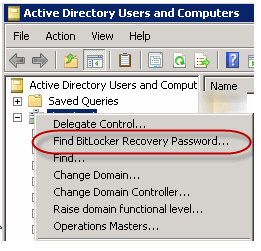
    Once install process completes you can open Active Directory Users and Computers and right click on domain level. You should now see »Find BitLocker Recovery Password…«

    Free E-Book – GNU/Linux Advanced Administration

    I am not a Linux fan. Maybe for interesting for any Linux sysadmin

    Copy:
    The GNU/Linux systems have reached an important level of maturity, allowing to integrate them in almost any kind of work environment, from a desktop PC to the sever facilities of a big company.

    In this ebook "The GNU/Linux Operating System", the main contents are related with system administration. You will learn how to install and configure several computer services, and how to optimize and synchronize the resources using GNU/Linux.

    The topics covered in this 500+ page eBook include Linux network, server and data administration, Linux kernel, security, clustering, configuration, tuning, optimization, migration and coexistence with non-Linux systems. A must read for any serious Linux system admin.

    Download click on the picture
    image

    Bron: NTPRO

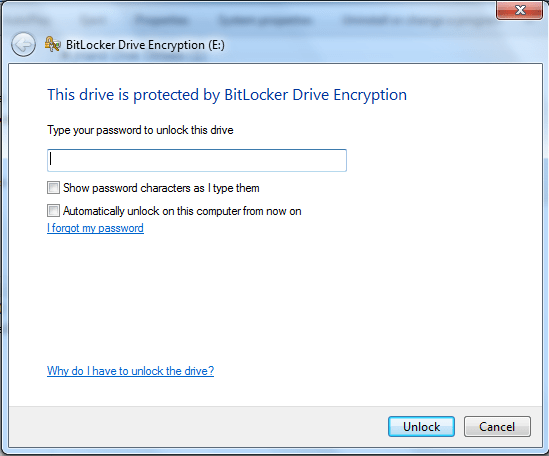
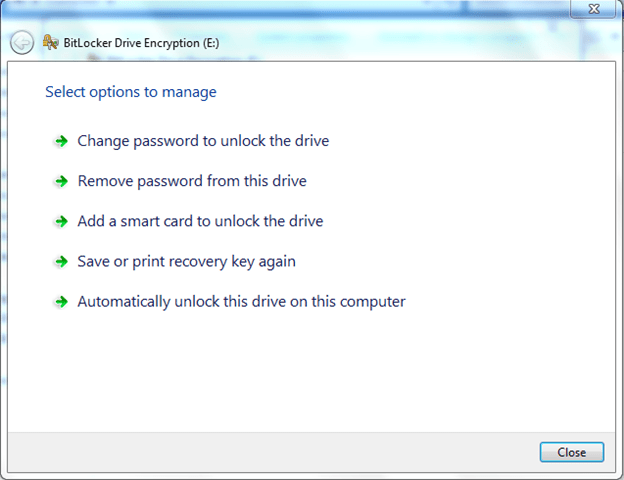
    Recovering USB Stick that is encrypted with Bitlocker

    1
    WWWOooeeeps I forgot my password for my USB stick .

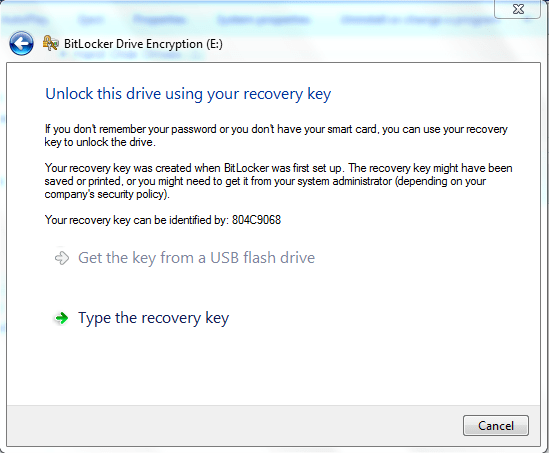
    What we do next: I forgot my Password
     2 3

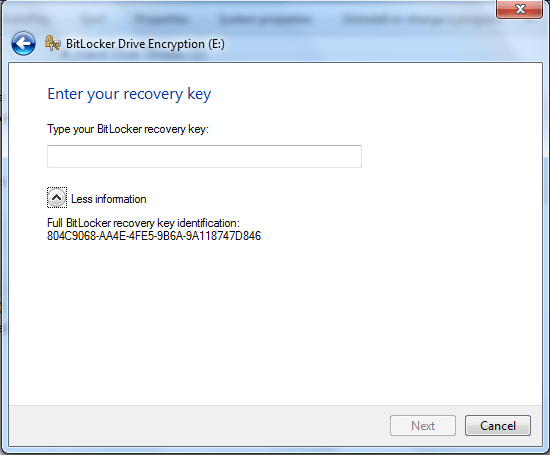
    Click on More Information: Hey I found a recovery key
    4
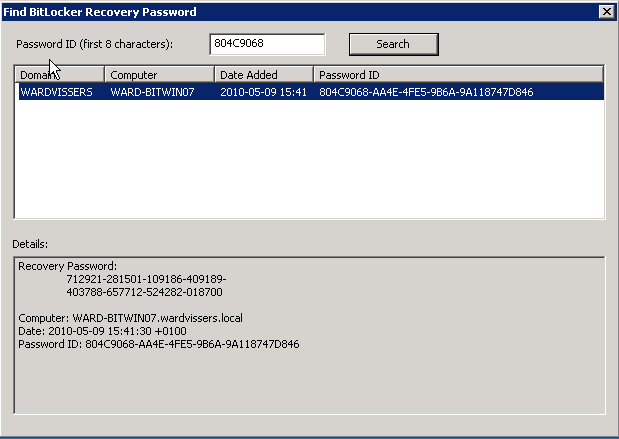
    Then you go to Active Directory Users And Computers
    image image

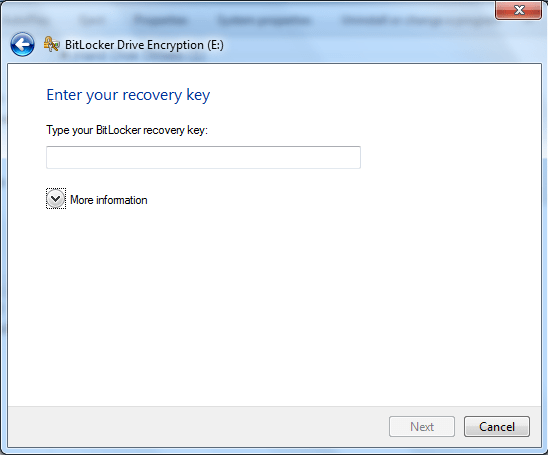
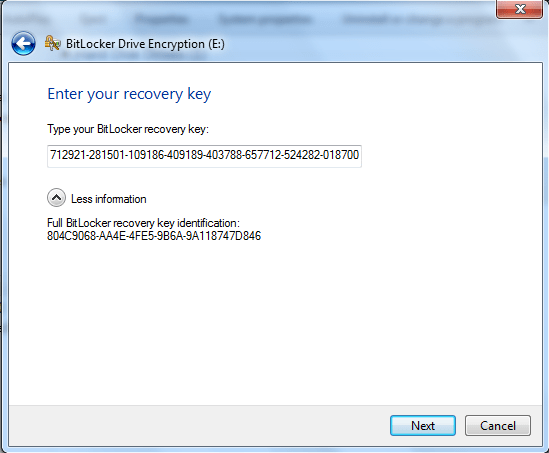
    Next Enter the the recovery key
    5 

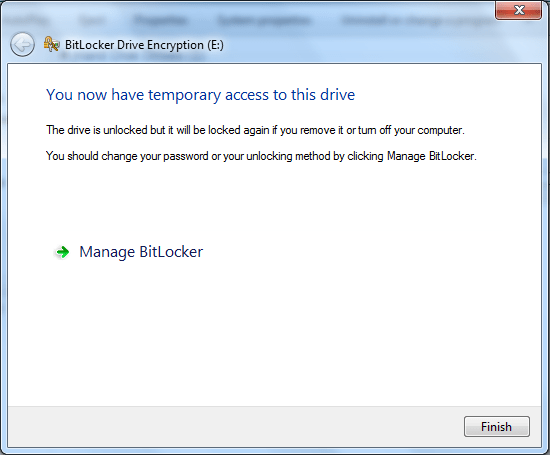
    YES: My data is readably
     6

    Last Step: Changing your password 
     7

    Migrate a DFS Namespace to Windows Server 2008 Mode

    When you plan to use to upgrade your DFS domain namespace to 2008 Mode there are some requirements:
    – The forest uses the Windows Server 2003 or higher forest functional level
    – The domain uses the Windows Server 2008 or higher domain functional level
    – All namespace servers are running Windows Server 2008 or (2008 R2)

    1. Installing latest DFS Hotfix on servers where Distributed File System (DFS) technologies is installed
    2. Dfsutil root export \\domain\namespace path\filename.xml
    3. Remove all Namespace Servers
    4. Dfsutil root remove \\domain\namespace
    5. Dfsutil root adddom \\server\namespace v2
    6. Dfsutil root import merge path\filename.xml \\domain\namespace
    7. Add all Namespace servers
    8. Tuning replication performance in DFSR (especially on Win2008 R2)

    MDT 2010 Update 1 Beta Released

    The Solution Accelerators Team have released Microsoft Deployment Toolkit 2010 Update 1 Beta and would like your feedback.

    Download the beta now at https://connect.microsoft.com/site14/Downloads/DownloadDetails.aspx?DownloadID=8689

    MDT 2010 Update 1 provides new capabilities, such as:

    · Support for Microsoft Office 2010.

    · A new User-driven Installation (UDI) deployment method (formerly known as “Modena”) for Microsoft System Center Configuration Manager 2007. UDI gives information technology (IT) staff control over the deployment experience while empowering users to interact with and customize their operating system deployment through an easy-to-use wizard.

    · Improvements to the Deployment Workbench driver import process, detecting each driver’s true supported platforms.

    · Many bug fixes and other small improvements.

    This release supports the deployment of the Windows® 7; Windows Vista®; Windows XP; Windows Server® 2008 R2; Windows Server 2008; and Windows Server 2003 operating systems. See the Microsoft Deployment Toolkit Documentation Library, which is included with MDT 2010 Update 1, for the complete documentation for this release.

    Translate »