Microsoft Application Compatibility Toolkit (ACT)

The Microsoft Application Compatibility Toolkit (ACT) 5.5 is a free tool from Microsoft. It helps customers understand their application compatibility situation by identifying which applications are compatible with the Windows 7 RC and Windows Vista® operating system and which require further testing. ACT helps customers lower their costs for application compatibility testing, prioritize their applications, and deploy Windows more quickly. You can use the ACT features to:

  • Verify an application’s compatibility with a new version of the Windows operating system, or a Windows Update, including determining your risk assessment.
  • Become involved in the ACT Community, including sharing your risk assessment with other ACT users.
  • Test your Web applications and Web sites for compatibility with new releases and security updates to the Windows® Internet Explorer® Internet browser.

Software Requirements:

Type of Software Type of Software
Operating Systems – Windows 7
– Windows Vista
– Windows Vista with Service Pack 1 (SP1)
– Windows XP with Service Pack 2 (SP2) or Service
   Pack 3 (SP3)
– Windows Server 2003 with Service Pack 2 (SP2)
– Windows Server 2008 R2
Database Components – Microsoft SQL Server 2008
– Microsoft SQL Server 2005
– Microsoft SQL Server 2008 Express
– Microsoft SQL Server 2005 Express
.NET Framework – ACT requires the .NET Framework 2.0 or newer.

Download HERE
image

Microsoft Assessment & Planning Toolkit

The Microsoft Assessment and Planning (MAP) Toolkit is an agentless toolkit that finds computers on a network and performs a detailed inventory of the computers using Windows Management Instrumentation (WMI) and the Remote Registry Service. The data and analysis provided by this toolkit can significantly simplify the planning process for migrating to Windows® 7, Windows Vista®, Microsoft Office 2007, Windows Server® 2008 R2, Windows Server 2008, Hyper-V, Microsoft Application Virtualization, Microsoft SQL Server 2008, and Forefront® Client Security and Network Access Protection. Assessments for Windows Server 2008 R2, Windows Server 2008, Windows 7, and Windows Vista include device driver availability as well as recommendations for hardware upgrades.

You can use MAP to inventory the following platforms:

  • Windows 7
  • Windows Vista
  • Windows XP® Professional
  • Windows Server 2008 or Windows Server 2008 R2
  • Windows Server 2003 or Windows Server 2003 R2
  • Windows 2000 Professional or Windows 2000 Server
  • VMware ESX
  • VMware ESXi
  • VMware Server

Reporting
– Identification of currently installed Windows client operating systems, their hardware, and recommendations for migration to Windows 7 and Windows Vista. The tool also reports if desktops have anti-virus and anti-malware programs installed and if the Windows Firewall is turned on.
– Identification of currently installed Windows Server operating systems, their hardware, and recommendations for migration to Windows Server 2008 R2 and Windows Server 2008.
– Identification of currently installed Microsoft Office software and recommendations for migration to Microsoft Office 2007.
– Detailed assessment and reporting of server utilization gathered using the Performance Metrics Wizard.
– Recommendations for server consolidation and virtual machine placement using Hyper-V
– Assessment of client machines, servers, and the technology environment for the implementation of Microsoft Application Virtualization (APP-V)
– Identification of machines where Microsoft SQL Server components are installed.
– Identification of virtual machines, their hosts, and details about each.
– Identification of Windows Server Roles

Hardware Requirements:
– Windows 2003 x86/x64 or Windows 2008 x86/x64
– 1,5 GB (2 GB 2008)

Software Requirements:
– NET Framework 3.5 SP1
– Windows Installer 4.5
– Microsoft Office Word 2007 or Word 2003 SP2
– MIcrosoft Office Excel 2007 or Excel 2003 SP2
– SQL Server 2008 Express Edition, SQL Server 2008, or SQL Server 2005

image image
image image

Download Microsoft Assessment and Planning (MAP) Toolkit HIER

MDT 2010 Health Care

MDT 2010 Health Care is een samenvatting van best practices voor het aanpassen,  bouw en migreren, en beveiligen van Windows XP, Windows Vista of Windows 7 machines. Ook wordt hier kort beschreven hoe men applicaties kan uitrollen (scripted installs,silent installetie, application packages) als onderdeel van de uitrol. Het gaat om het uitrollen van een standaard desktop voor gemeenschappelijk gebruik. Tevens wordt besproken hoe men de gegeven van een gebruiker mee kan nemen naar de nieuwe werkplek.

Handleidingen:
Healthcare Desktop User State Migration Guide
Automated Build Application Integration Guide
Healthcare MDT 2010 Administrators Guide
Automated Build Healthcare Desktop and Server Guide

Downloaden van de MDT HealthCare doe je hier: MDT HealthCare

Installatie:

 image image
image image
image image

Voorbeeld wat Health Care automatisch aanmaakt:

image

VMWare View XP Template

Installatie XP

1. Windows XP SP3 ISO nodig
2. Maak een XP virtuele machine aan met een buslogic harddisk van 16GB en 512MB geheugen 
2. Maak een een harddisk aan van SCSI harddisk aan van 16GB.
3. Boot vanaf de ISO
4. Mount the vmscsi-1.2.0.2.flp”
5. Op de VM ga naar edit settings en dan naar de Options tab en in General gedeelte haal het vinkje weg bij Enable logging.
6. Na installatie Verwijder the Serial, Parallel and Floppy ports.
7. Installeer VMWare Tools custom zonder de Shared Folders driver.
8. Installeer de VMWare View Client
9. Werk de VM helemaal bij zonder de volgende updates.
    – Microsoft Base Smart Card Cryptographic Service Provider Package: x86
    – Microsoft Windows Search 4.0 for Windows XP

Configuren van de XP Template

1. Deze Computer, Advanced tabblad, Performance settings. Kies voor “Adjust for best performance”.
image

2. Disable Automatisch Updates
image
3. Turn Off System Restore

image 

4. Verwijder alle overbodige Windows Componenten.
image

5. Open User Accounts, click Change the way users log on or off, Uncheck both boxes .
image

6. Verwijder alle overbodige snelkoppelingen onder All Users Profiel.

7. Disable de volgende services:
– Computer Browser
– Help and Support
– Indexing Service
– IPSec Service
– Network Local Awareness
– Security Center
– Shell Hardware Detection
– SSDP Discovery Service
– System Restore Service
– Task Scheduler
– Themes
– Windows Firewall/Internet Connection Sharing (ICS)
– Wireless Zero Configuration

8. Start –> Run –> FSUTIL behavior set disablelastaccess 1

9. Start –> Run –> sfc /purgecache

10. Start –> Run –> sfc /cachesize=0

11. Start –> Run –> Regsvr32.exe /u msutb.dll

12. Start –> Settings –> Printers and Faxes.
      File, Server Properties, Advanced tab verwijder alle vinkjes
image

13. Installeer User Profile Hive Cleanup Service

14. Start –> Control Panel –> Network Connections –> LAN –> Properties Internet Protocol (TCP/IP)
–> Properties > Stel het IP address van je DNS Servers in. 

image

15. Verwijder alle overbodige mappen. Zoals C:\WINDOWS\$hf_mig$

16. Draai Disk Clean Up
image
17. Defragmenteer de Schijf

18. Vergeet ook niet op RDP aan te zetten
image

19. Maak een nieuwe gebruiker aan en configureer dit profiel en als je klaar bent log dan in met administrator account en kopieer het profiel naar de default user

20. Verwijder de tijdelijke gebruiker die je hier voor hebt aangemaakt.

21. Zet de VM uit en maak een snapshot en convert to template.

MDT AMD PCNET32 (AMD Am79C790A0) driver voor VMWARE

Heel veel mensen gebruiken MDT om via windows PE boot via PXE Boot om een nieuw OS uit te rollen binnen VMWare. Heel veel mensen rollen standaard een XP of een 2003 machine uit. Standaard kiest VMWare voor de flexible adapter de AMD PCNET32 adapter. Alleen als je de driver gebruikt die standaard met VMWare meegeleverd wordt krijg je de volgende error tijdens het opstarten de Lite Touch Image.

image  

Je krijgt dan de volgende error:
mdt amd error

De standaard driver die VMWare mee levert in VMWare Tools werkt niet binnen een Windows PE image. Wel als Windows een maal geïnstalleerd is.

Oplossing:
Download van de AMD site de NDIS5 driver voor Microsoft Windows Server 2003, Windows XP

PCNET Family Software vind je HIER en de juiste driver voor MDT (WinPE) vind je HIER

MDT Wachtwoord Wijzigen van een OS taak

Voor de desbetreffende Windows XP, Windows 2003 task klik properties en ga dan naar het tabblad OS info. Pas het wachtwoord aan in de sysprep.inf & unattend.txt

image

Voor de desbetreffende Windows 7 & Windows Vista & Windows 2008 & Windows 2008 R2 task
klik properties en ga dan naar het tabblad OS info. Klik op Unattend.xml
image 
Onder oobeSystem –> amd64_Microsoft-Windows-Shell-Setup_neutral –> UserAccounts –> AdministratorPassword
image

VMWare Workstation 7 is vrijgegeven door VMWare

VMWare heeft VMWare Workstation 7 vrijgegeven door VMWare.

De volgende nieuwe OS worden ondersteund:
– Windows 7 Home Basic
– Windows 7 Premium
– Windows 7 Business
– Windows 7 Enterprise
– Windows 7 Ultimate
– Windows 2008 SP2, R2
– Windows Vista SP2

Nieuwe Features:
– Windows 7
– Aero
– Windows XP Mode Compatible
– 3D Graphics Verbeteringen voor Windows XP gasten
– vSphere Support ESX 4.0 Overwegingen voor het draaien van een ESX gast.
– Virtuele Printing
– Four-way SMP
– Guest 32GB Memory
– 256-bit Encryption
– AutoProtect
– Advanced Linux Sound Architecture (ALSA
– Cross-Platform License Keys
– Pauzeer een Virtual Machine
– Expand virtuele schijven
– Compact virtuele schijven
– Shared Folder Compatibiliteit
– On-Demand VMware Tools Download
– Drag and Drop Enhancements
– Virtual Network Editor
– Fuse Mount voor Linux
– Vereenvoudigde Verzamelen van Informatie over ondersteuning
– IPv6 Support

Officiële Release Notos vind je HIER

Windows XP Client download geen updates van SCE 2007 Error 0x80244019

Windows XP Client downloaden geen update van SCE 2007.
Je vindt in c:\windows\windowsupdate.log error 0x80244019

Probleem is dat de PC geen toegang krijg tot SCE 2007.

Vereisten
Windows PC is in het domein.
Windows PC heeft de laatste Windows update client
http://support.microsoft.com/kb/949104/nl

Oplossing:
Zorg voordat je gaat nieuwe pc deployen een computer account is aangemaakt in Active Directory.
Maak deze computer al lid van de SCE Managed Computers (Servernaam_MG) Groep.

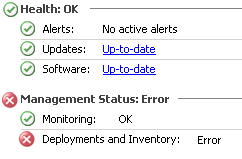
XP client geeft Deployment & Inventory error in SCE 2007

image

1. Client Agent verwijderen in System Center

2. Register key’s verwijderen (Alles) onder HKEY_LOCAL_MACHINE\SOFTWARE\Microsoft\Windows\CurrentVersion\WindowsUpdate

A Windows 2000-based, Windows Server 2003-based, or Windows XP-based computer that was set up by using a Windows 2000, Windows Server 2003, or Windows XP image does not appear in the WSUS console

3. Opnieuw opstarten

4. Inloggen als administrator

5. Firewall uitschakkelen

6. Controleren of de computer gekoppeld is aan SCE Managemed Computers security group

7. Agent installeren via System Center

8. wuauclt.exe /resetauthorization /detectnow /force

9. Even wachten 10min

10. Indien nog lang duurt wuauclt.exe /detectnow /force uitvoeren

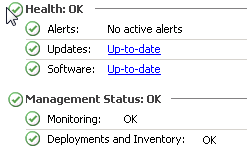
11. Als het goed is moet nu Deployments & Inventory & Monitoring nu groen zijn.

12. Mocht het niet werken. Dan de volgende stappen opnieuw uitvoeren 2,3,4,5,8,9.10

image

MDT 2010 Officieel Vrijgegeven & MDT 2010 Nieuwe Functies

Microsoft heeft MDT 2010 vrijgegeven. Dit is de tool van Microsoft waarmee OS mee uitgerold kunnen worden. De nieuwe versie heeft heel veel nieuwe functies. Deze versie ondersteund Windows XP, Windows Vista, Windows 7, Windows Server 2003, Windows 2008 en Windows 2008 R2.
Downloaden doe je MDT 2010 HIER

 Michael Niehaus heeft een overzicht gemaakt van alle nieuwe functies en stuk voor stuk uitlegt wat het doet. Ik heb even een mooi overzicht van gemaakt:

Automatically update MDT 2010 boot images in WDS
Automating Long-Running MDT 2010 Tasks

MDT 2010 New Feature #1: Logging directly to the network
MDT 2010 New Feature #2: Gathering virtualization details
MDT 2010 New Feature #3: Suspend and resume a Lite Touch task sequence
MDT 2010 New Feature #4: Folders everywhere
MDT 2010 New Feature #5: Support for multiple deployment shares
MDT 2010 New Feature #6: Drag and drop
MDT 2010 New Feature #7: Boot image creation optimized
MDT 2010 New Feature #8: No more visible command windows when booting Lite Touch Windows PE
MDT 2010 New Feature #9: Copy and paste support in the Deployment Workbench task sequence editor
MDT 2010 New Feature #10: Detection of signed drivers
MDT 2010 New Feature #11: Windows 7 and Windows Server 2008 R2 support
MDT 2010 New Feature #12: USMT 4.0 hardlink support
MDT 2010 New Feature #13: New task sequence templates
MDT 2010 New Feature #14: Database improvements
MDT 2010 New Feature #15: Finish actions
MDT 2010 New Feature #16: PowerShell support
MDT 2010 New Feature #17: Customizable boot image process
MDT 2010 New Feature #18: Selection Profiles
MDT 2010 New Feature #19: Improved Driver Management
MDT 2010 New Feature #20: General Purpose ConfigMgr wizard
MDT 2010 New Feature #21: Copying extra folders

Translate »