Core Configurator V2 is beschibaar voor Windows Server 2008 R2 Core editie
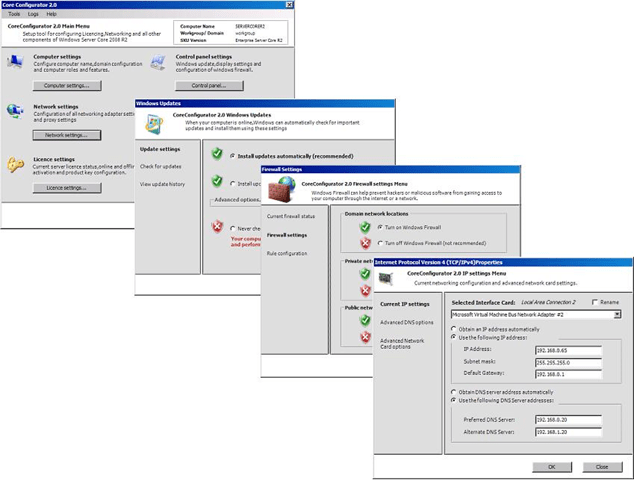 |
Core Configuration taken omvatten:
|
Downloaden doe je HIER
Core Configurator V2 is beschibaar voor Windows Server 2008 R2 Core editie
| |
Core Configuration taken omvatten:
|
Downloaden doe je HIER
Handige samenvattingen van de meest voorkomende procedures en commando’s gebruikt om de Server Core installaties beheren. Klik op het plaatje om bij de download te komen. 

Collega van mij Virtual Ief heeft een mooi artikel geschreven waarin een complete over zicht van alle updates die Update 1 voor vSphere 4 beschreven zijn. Lees het complete artikel hier
VMware ESX 4 Update 1 verbeteringen:
– VMware View 4.0
– Windows 7 and Windows 2008 R2 support
– Enhanced Clustering Support for Microsoft Windows
– Enhanced VMware Paravirtualized SCSI Support
– Improved vNetwork Distributed Switch Performance
– Increase in vCPU per Core Limit
– Enablement of Intel Xeon Processor 3400
The new VMware ESX 4 update 1 build is 208167
VMware vCenter Server 4.0 Update 1 verbeteringen:
– IBM DB2 Database Support for vCenter Server
– VMware View 4.0 support
– Windows 7 and Windows 2008 R2
– Pre-Upgrade Checker Tool
– HA Cluster Configuration Maximum
– VMware recommends installing vCenter Server on a 64-bit Windows operating system.
VMware Data Recovery (vDR) version 1.1 verbeteringen:
– File Level Restore Functionality is Officially Supported
– Integrity Check Stability and Performance Improved
– Integrity Checks Provides Improved Progress Information
– Enhanced CIFS Shares Support
vSphere PowerCLI 4.0 Update 1 verbeteringen:
– Downloaden doe je HIER.
VMware vCenter Server Heartbeat 5.5 Update 2 verbeteringen:
– Support for Windows Server 2008 SP1 and SP2 (x86/x64)
– Support for Windows Server 2003 Enterprise SP2 (x64Protection of VMware vCenter Management Web – Services
– Introduction of the WinZip Self-Extracting executable file for Setup
– 60-day evaluation
– Tomcat Monitoring Rule

VMWare heeft een document uitgebracht waar in uitgelegd wordt hoe je de beste performance kunt krijgen in vSphere 4.0 op een aantal gebieden:
Deze zijn: hardware keuze, ESX & virtual machines, gast operating systems, en virtual infrastructure management.
Hoofdstukken:
Hoofdstuk 1, "hardware voor gebruik met VMware vSphere," op pagina 11, geeft aanwijzingen over het selecteren van de hardware voor gebruik met vSphere.
Hoofdstuk 2, "ESX en Virtual Machines," op pagina 17, geeft aanwijzingen met betrekking tot VMware ESX ™ software en de virtuele machines die er op gaan draaien.
Hoofdstuk 3, "Score besturingssystemen" op pagina 29, geeft aanwijzingen met betrekking tot de gast-besturingssystemen draaien in virtuele machines.
Hoofdstuk 4, "Virtual Infrastructure Management," op pagina 35, geeft aanwijzingen met betrekking tot het beheer van best practices.
Download:
http://www.vmware.com/pdf/Perf_Best_Practices_vSphere4.0.pdf
Microsoft een een 40 tal templates beschikbaar gesteld voor Windows Sharepoint Services 3.0
http://technet.microsoft.com/en-us/windowsserver/sharepoint/bb407286.aspx
Microsoft levert voor deze templates geen installatie op.
De installatie gebeurd via de command prompt.
Installing application templates for Windows SharePoint Services 3.0
Rob Pellicaan heeft hier voor een mooi script inelkaar gezet die alle templates achter elkaar netjes importeerd.
Het script: (Opslaan als .cmd)
set cmmand="C:\Program Files\Common Files\Microsoft Shared\web server extensions\12\BIN\stsadm.exe"
%cmmand% -o addsolution -filename ApplicationTemplateCore.wsp
%cmmand% -o deploysolution -name ApplicationTemplateCore.wsp -allowgacdeployment -local
%cmmand% -o copyappbincontent
for /F %%i in (‘dir /b *.wsp’) do %cmmand% -o addsolution -filename %%i
for /F %%i in (‘dir /b *.wsp’) do %cmmand% -o deploysolution -name %%i -allowgacdeployment –local
1. Enter the productkey:
slmgr.vbs -ipk xxxxx-xxxxx-xxxxx-xxxxx-xxxxx
2. Activate:
slmgr.vbs -ato
3. Show activation:
slmgr.vbs -dli
4. Rename the computer:
Netdom renamecomputer WIN-???????? /newname:W2K8RDC01 /reboot:15
(use the command set to view all the variables used by Microsoft Windows)
5. Show all network interfaces:
Netsh interface ipv4 show interface
6. Set a static IP address:
Netsh interface ipv4 set address name=2 source=static address=xxx.xxx.xxx.xxx mask=255.255.255.0 gateway=xxx.xxx.xxx.xxx
(make sure that you’re choosing the right network interface. In this example it’s 2, so name=2 it means interface 2)
7. Set a static DNS server:
Netsh interface ipv4 add dnsserver name=2 address=xxx.xxx.xxx.xxx index=1
8. Turn Remote Desktop (RDP) on:
Cscript %windir%system32SCRegEdit.wsf /ar 0
9. Enable Remote Desktop (RDP) in the Windows Firewall:
netsh advfirewall firewall set rule group=”remote desktop” new enable=yes
10. Enable Remote Management (RemoteCMD) in the Windows Firewall:
netsh firewall set service type=remoteadmin mode=enable
11. Join the domain:
Netdom join W2K8RDC01 /domain:adtest.local /usero:administrator /passwordo:*
(This step is only for joining a member server to the domain. For a Domain Controller go to step 12)
12. Preparing the promotion to a Read Only Domain Controller:
We need to create a unattend.txt that we are going to use by the DCPROMO. So let’s create a new textfile, type notepad
13. Making the unattended.txt:
Copy and past the following test into the new textfile and save this file on the C: drive of the Core Server.
==================================================
[DCInstall]
InstallDNS=Yes
ConfirmGc=Yes
CriticalReplicationOnly=No
DisableCancelForDnsInstall=No
RebootOnCompletion=Yes
ReplicaDomainDNSName=adtest.local
ReplicaOrNewDomain=ReadOnlyReplica
ReplicationSourceDC=win2k8dc01.adtest.local
SafeModeAdminPassword=******************
SiteName=Default-First-Site-Name
UserDomain=adtest.local
UserName=administrator
Password=******************
RebootOnCompletion=Yes
==================================================
14) Run the DCPROMO
dcpromo /unattend:c:unattend.txt
Ik vond een nice tooltje om Windows Core mee te configureren. Het tootlje is gemaakt door voormalig MVP Guy Teverovsky. Het tooltje heet dan ook Core Configurator.
Hij geeft dit tooltje gemaakt in prive tijd maar dit heeft dit van zijn voormalige werkgever of line moeten halen. Zie het verhaal hier.
Hoezo voor malig MVP: Hij heeft zijn MVP Titel moeten inleveren toen hij voor Microsoft ging werken in Isreal.
Downloaden:
CoreConfigurator.cab
Coreconfigurator.zip
En zo ziet het tooltje er uit: 
De nieuwe release of ESX/ESXi 3.5 zijn de volgende wijzigingen in doorgevoerd.
De nummers of vCPU per Core is gelimiteerd van 8 naar 20.
Er worden weer nieuwe servers, netwerkkaarten en opslag I/O controllers ondersteund.
De lijst met ondersteunende OS is ook bij gewerkt.
ESX Server 3.5 Update 3 Release Notes
ESXi Server 3.5 Update 3 Embedded Release Notes
ESXi Server 3.5 Update 3 Installable Release Notes
Te downloaden vanaf http://www.vmware.com/download/vi/