Rollup 3 voor Exchange Server 2007 Service Pack 2

Microsoft heeft Rollup 3 voor Exchange 2007 Service Pack 2 vrijgegeven.

Het overzicht wat er allemaal gefixt is:
"451 4.4.0 DNS Query Failed" status message in an Exchange Server 2007 Edge Transport server

Later updates do not match a calendar item that an Exchange Server 2007 user updates by using Exchange ActiveSync on a mobile device

You receive an "0x800423f0" error message when you perform system state backups on the passive node of Windows Server 2008-based Exchange Server 2007 CCR clusters

An external recipient misses the last occurrence of a recurring meeting request or a recurring appointment that is sent from an Exchange Server 2007 user

The Edgetransport.exe process crash when it process meeting requests in Exchange Server 2007

The subject of a confirmation message is garbled for certain languages when a remote device wipe operation is performed in Exchange Server 2007

The sender address of a forwarded meeting request does not include "on behalf of" as expected in an Exchange Server 2003 organization and an Exchange Server 2007 organization mixed environment

A SSL certificate validation error is generated on an Exchange Server 2007 server when you run any test commands after you run the Test-SystemHealth command

A mailbox that was moved from an Exchange Server 2007 server to an Exchange Server 2010 server cannot be accessed by using Outlook

The Microsoft Exchange Information Store service stops responding on an Exchange Server 2007 server

The synchronization and the reconciliation between Microsoft Office Outlook and a BlackBerry mobile device fails when a mailbox is moved around between two Exchange Server 2007

The Microsoft Exchange Information Store service crashes on a Microsoft Exchange Server 2007 server when a user tries to access a specific calendar item

Read items are marked incorrectly as unread items in an Exchange Server 2007 public folder

A delegate cannot save three settings of Resource Settings for an Exchange Server 2007 resource mailbox in OWA

You receive an error message when you use ExBPA to schedule a scan on an Exchange Server 2007 SP2 server

The store.exe process hangs on an Exchange Server 2007 server

Downloaden doe je HIER

FREE eBook: The SysAdmin Handbook

Een aantal mensen van Red-Gate hebben weer een mooi ebook geschreven wat elke Microsoft/Exchange beheerder moeten weten. Het is een samenvatting van The Best of
Simple Talk SysAdmin

De Onderwerpen:

Exchange
– High Availability in Exchange 2007
– Message Hygiene in Exchange Server 200731
– Using Exchange 2007 for Resource Booking
– Controlling Email Messages using Exchange’s Transport Rules
– Exchange 2007 Mailbox Server Clustering
– Top Tips for Exchange Admins
– Exchange Database Technologies
– Message Classifications in Exchange 2007
– Deploying Exchange 2007 on Windows Server 2008
– Exchange Server Log File Replay
– Configuring Exchange Server 2007 to Support Information Rights Management
– Reporting on Mobile Device Activity Using Exchange 2007 ActiveSync Logs
– Online Exchange Backups
– Optimizing Exchange Server 2007
– Exchange: Recovery Storage Groups
– Exchange E-mail Addresses and the Outlook Address Cache
– Upgrading to Exchange Server 2007
– Goodbye Exchange ExMerge, Hello Export-Mailbox
– Determining MS Exchange Disk Performance
– Upgrading to Exchange Server 2007: Part 2
– Message Tracking in Exchange 2007
– Third Party High Availability and Disaster Recovery Tools for Microsoft Exchange Server
– Exchange Server 2010 – The First Public Beta Version
– Emulating the Exchange 2003 RUS for Out-of-Band Mailbox Provisioning in Exchange 2007
– Using Exchange 2007 Transport Rules to Protect the First Entry in the Address Book
– Cluster Continuous Replication Network Design
– Building an Exchange Server 2007 environment
– An Introduction to Messaging Records Management
– Installing Hyper-V and Beyond
– Restricting Outlook Client Versions in Exchange 2007
– Using Twitter and PowerShell to Find Technical Information and Join a Community
– Update: Exchange Server 2010 Release Candidate
– Exchange backups on Windows Server 2008
– Moving to Office Communications Server 2007 R2
– Monitoring and Scheduling Exchange 2007 Database Online Maintenance
– Exchange 2010 High Availability
– Implementing Cluster Replication – Part 1
– The Active Directory Recycle Bin in Windows Server 2008 R2
– Using Group Policy to Restrict the use of PST Files
– Introduction to Exchange Server 2010
– The Ego and the System Administrator
– Implementing Windows Server 2008 File System Quotas
– Implementing Cluster Continuous Replication, Part 2
– Active Directory Management with PowerShell in Windows Server 2008 R2
– Upgrade Exchange 2003 to Exchange 2010
– Customizing the Outlook Address Book

General Articles
– A SysAdmin’s Guide to Change Management
– A SysAdmin’s Guide to Users
– Change Management – What It Is and Why You Need It
– Manage Stress Before it Kills You
– Hiring System Administrators
– Increase Your Value as a Professional in the Technical Industry
– The Art of Dealing with People

Virtualization
– Virtual Exchange Servers
– Virtualizing Exchange: points for discussion
– Build Your Own Virtualized Test Lab
– A Beginner’s Guide to Virtualizing Exchange Server – Part 1
– A Beginner’s Guide to Virtualizing Exchange Server – Part 2
– Windows Server Virtualisation: Hyper-V, an Introduction
– Increasing the Availability of Virtualized Applications and Services
– Microsoft Hyper-V Networking and Configuration – Part 1

Unified Messaging
– An Introduction to Unified Messaging
– Moving to Office Communications Server 2007 R2

PowerShell
– Managing Exchange 2007 Mailbox Quotas with Windows PowerShell
– So You Thought PowerShell Was Only For Exchange 2007

Downloaden klik op het boek

image

Installeren van VMWare Tools op CentOS

Login met VMWare Server Console CentOS en mount de cdrom

 image
mkdir /mnt/cdrom
mount /dev/cdrom /mnt/cdrom
mount: block device /dev/cdrom is beveiligd tegen schrijven, gemount als alleen-lezen

Mount zal de link naar de cdrom / mnt / cdrom directory.en de installatie te starten.
cd /mnt/cdrom /
rpm-i VMwareTools-4.0.0-219382.i386.rpm

Voordat draait VMware Tools voor de eerste opstart moet hij geconfigureerd worden voor de kernel met het volgende commando:
"/usr/bin/vmware-config-tools.pl"
Om gebruik te maken van de VMXNET Driver moet je het volgende doen: ma
/etc/init.d/network stop
rmmod pcnet32
rmmod vmxnet
modprobe vmxnet
/etc/init.d/network start

Verwijder VMWare Tools binnen CentOS
rpm-e VMwareTools

MDT 2010 Deploy per Computer of per Model MDT DataBase Config

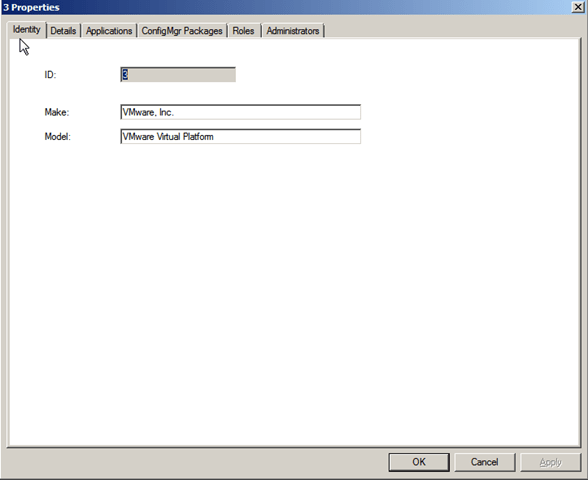
Met MDT 2010 kun je ook Applicaties per Model of per Computer deployen. 
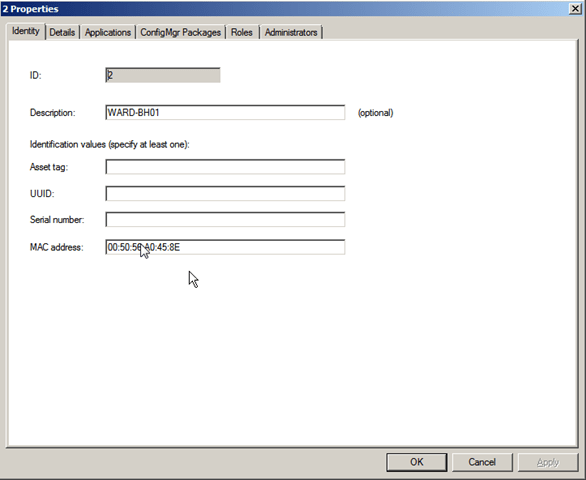
In het artikel MDT 2010 Deploy per Computer of per Model heb ik uitgelegd om de juiste te achter halen.

Per Computer:
image

Per Model (Getest met een Virtuele XP Machine):
image clip_image002

VMWare View GPO settings

Group Policy settings die je moet zetten onder Remote Desktop

image

VMWare View Client GPO settings
– Enable the shade
– Pin the shade
– Don’t check monitor alignment on spanning
– Color depth
– Desktop background
– Show contents of window while dragging
– Menu and window animation
– Themes
– Cursor shadow
– Font smoothing
– Desktop composition
– Audio redirection
– Redirect drives
– Redirect printers
– Redirect serial ports
– Redirect smart cards
– Redirect clipboard
– Redirect supported plug-and-play devices
– Bitmap caching
– Shadow bitmaps
– Cache persistence active
– Enable compression
– Windows key combination redirection
– Bitmap cache file size

The VMware View ADM files can be found on the following place:

“C:\Program Files\VMware\VMware View\Server\Extras\GroupPolicyFiles”

– vdm_agent.adm contains properties relating to the authentication and
environmental components of a client desktop controlled by View Agent
-  vdm_client.adm contains properties relating to the configuration parameters of
View Client
– vdm_server.adm contains properties relating to View Connection Server
– vdm_common.adm contains properties relating to all components of View Manager
– pcoip.adm PCOIP Performance properties

Meer hierover vindt je in VMWare View Manager Administration Guide & VMWare XP deployment Guide

MDT 2010 Deploy per Computer of per Model

Met de volgende commando’s krijg je de info om per Computer of Model te Deployen.

WMI Model & Manufacturer:
Get-WmiObject -Class win32_computersystem | fl Name,Model,manufacturer

image

WMI UUID, Vender:
Get-WmiObject -Class win32_computersystemproduct | fl Name,Model,UUID,Identifyingnumber,Vendor

image

MDT2010 Configure Database Options

image image

image image

image image

Zorg dat NT AUTHORITY\ANONYMOUS LOGON toegang heeft tot de MDT 2010 Database en  de rechten db_datareader krijgt.

VMWare View XP Template

Installatie XP

1. Windows XP SP3 ISO nodig
2. Maak een XP virtuele machine aan met een buslogic harddisk van 16GB en 512MB geheugen 
2. Maak een een harddisk aan van SCSI harddisk aan van 16GB.
3. Boot vanaf de ISO
4. Mount the vmscsi-1.2.0.2.flp”
5. Op de VM ga naar edit settings en dan naar de Options tab en in General gedeelte haal het vinkje weg bij Enable logging.
6. Na installatie Verwijder the Serial, Parallel and Floppy ports.
7. Installeer VMWare Tools custom zonder de Shared Folders driver.
8. Installeer de VMWare View Client
9. Werk de VM helemaal bij zonder de volgende updates.
    – Microsoft Base Smart Card Cryptographic Service Provider Package: x86
    – Microsoft Windows Search 4.0 for Windows XP

Configuren van de XP Template

1. Deze Computer, Advanced tabblad, Performance settings. Kies voor “Adjust for best performance”.
image

2. Disable Automatisch Updates
image
3. Turn Off System Restore

image 

4. Verwijder alle overbodige Windows Componenten.
image

5. Open User Accounts, click Change the way users log on or off, Uncheck both boxes .
image

6. Verwijder alle overbodige snelkoppelingen onder All Users Profiel.

7. Disable de volgende services:
– Computer Browser
– Help and Support
– Indexing Service
– IPSec Service
– Network Local Awareness
– Security Center
– Shell Hardware Detection
– SSDP Discovery Service
– System Restore Service
– Task Scheduler
– Themes
– Windows Firewall/Internet Connection Sharing (ICS)
– Wireless Zero Configuration

8. Start –> Run –> FSUTIL behavior set disablelastaccess 1

9. Start –> Run –> sfc /purgecache

10. Start –> Run –> sfc /cachesize=0

11. Start –> Run –> Regsvr32.exe /u msutb.dll

12. Start –> Settings –> Printers and Faxes.
      File, Server Properties, Advanced tab verwijder alle vinkjes
image

13. Installeer User Profile Hive Cleanup Service

14. Start –> Control Panel –> Network Connections –> LAN –> Properties Internet Protocol (TCP/IP)
–> Properties > Stel het IP address van je DNS Servers in. 

image

15. Verwijder alle overbodige mappen. Zoals C:\WINDOWS\$hf_mig$

16. Draai Disk Clean Up
image
17. Defragmenteer de Schijf

18. Vergeet ook niet op RDP aan te zetten
image

19. Maak een nieuwe gebruiker aan en configureer dit profiel en als je klaar bent log dan in met administrator account en kopieer het profiel naar de default user

20. Verwijder de tijdelijke gebruiker die je hier voor hebt aangemaakt.

21. Zet de VM uit en maak een snapshot en convert to template.

Configureren van VMWare View Connection Manager Server

Stap 1. Licentie code invoeren.
image 
Stap 2. Configureer Virtueel Center
image image

 image
3.  Aanmaken van een Desktop Pool.

image image
image image 
image  image  
image image
image image

image image
image
4. Zorg dat in Active Directory een groep hebt gemaakt waarin elke user zit die een desktop mag gebruiken. Ik heb groep View Gebruikers aan gemaakt.
image
image

image image
5. En dat was het.

Translate »