Windows Server 8 Beta Active Directory install in Workstation 2012 Tech Preview

Some days ago I was installing Windows Server 8 aka 2012 in Workstation 2012 Tech Preview. I used the default settings where I choise for Windows 8 x64 as version.
image

I have used these VMs with the VMware Tools from the TechPreview.

As soon as I try to install and configure the Active Director Domain Services, the VM needs to reboot. Once it has rebooted, it goes in a blank screen, and there is nothing I can do. Workstation thinks the VM is running, but there is no response via the GUI in the VM, no response to ping traffic to the VM or RDP.

Solution:
Downgrade from Workstation TP2012 hardware to Workstation 8 hardware and to select Windows 2008 R2 as the guest OS Knipogende emoticon
imageimage

image

Microsoft Deployment Toolkit (MDT) 2012 – RTM

A couple of hours ago, Microsoft released MDT 2012

In contains numerous bug fixes as well as support for SCCM 2007 and SCCM 2012.

Improvements for All MDT Technologies

The MDT improvements that affect all MDT technologies, which are discussed in a subsequent section, are as follows:

  • Support for upgrading from previous versions of MDT
  • Integration with security and compliance templates generated by Microsoft Security Compliance Manager (SCM) version 2.0
  • Run Windows PowerShell™ scripts within an MDT task sequence
  • Create partitions to support best practice recommendations for deployment of BitLocker® Drive Encryption
  • Automatically configure participation in the Windows Customer Experience Improvement Program (CEIP) and Windows Error Reporting (WER)
  • Guidance that describes how to use Microsoft SQL Server® 2008 R2 with Service Pack 1 (SP1) for all database needs within MDT
Improvements for LTI Deployments

MDT includes the following improvements for LTI deployments:

  • Support for Windows 8 Consumer Preview and Windows Server 8 Beta. Note: The deployment of Windows Server 8 Beta roles and features using the Install Roles and Features task sequence action is not supported.
  • Support for the Windows Assessment and Deployment Kit (Windows ADK). Note: Currently, the Windows ADK is only supported for deploying Windows 8 Consumer Preview or Windows 7 in lab environments, not in production environments.

Windows ADK requires the Microsoft .NET Framework version 4.0. If not already installed, the Windows ADK installation installs the Microsoft .NET Framework version 4.0. For more information, see Introduction to the Windows Assessment and Deployment Kit.

  • Monitoring of LTI deployment process. MDT includes the new LTI monitoring feature that allows you to perform centralized monitoring of LTI deployments in the Monitoring node in the Deployment Workbench.
  • Deployment of Windows Recovery Environment (Windows RE). Windows RE helps users troubleshoot and recover from startup-related problems on their computers.
  • Deployment of Microsoft Diagnostics and Recovery Toolkit (DaRT).
  • Deployment to computers that use the Unified Extensible Firmware Interface (UEFI).
  • Deployment to computers that require the new globally unique identifier (GUID) Partition Table (GPT) format.
  • Deployment to virtual hard disks (VHDs) for native boot.
  • Support for Windows Thin PC.
  • Support for Windows Embedded POSReady 7.
  • Add local administrator accounts.
  • Deployment Wizard user experience improvements.
Improvements for Configuration Manager Deployments

MDT includes the following improvements for MDT deployments with Configuration Manager 2012 or Configuration Manager 2007 R3:

  • Support for System Center 2012 Configuration Manager. MDT includes support for System Center 2012 Configuration Manager for ZTI and UDI deployments
  • Support for new application model in Configuration Manager 2012.
  • Support for the user device affinity feature in Configuration Manager 2012.
  • Support for prestart command files.
  • Support for automatically starting a specific task sequence.
  • UDI Wizard user experience improvements.
  • The UDI Wizard has been completely revised to improve user experience.
  • UDI Wizard Designer user experience improvements.
  • The UDI Wizard Designer UI has been improved to make configuring the UDI Wizard even easier than previous versions.
  • Support for enabling BitLocker in UDI.
  • Support for MDT Replace Computer deployment scenario.
  • Localization of UDI Wizard.
  • Guidance for customizing UDI.
  • Upgrade tasks sequences created in Configuration Manager 2007 to Configuration Manager 2012.
  • Guidance for Configuration Manager 2007 R3.

Read more and download it from here 

Special thanks to Mikael Nystrom

What is the best way to migrate PDA’s or Tablets from a legacy version of Exchange to Exchange 2010.

Microsoft released November 2010 a great document: Publishing Exchange Server 2010 with Forefront Unified Access Gateway 2010 and Forefront Threat Management Gateway 2010.

One thing that I misted in that document: What is the best way to migrate PDA’s or Tablets from a legacy version of Exchange to Exchange 2010.

In most cases you wil use TMG als a firewall. Between the Internet and your internal Network.

Some weeks ago I did a Exchange 2010 migration en I don’t wanted a big bang scenario.

But I had the all the sort of phone’s that are on the marked today (Iphone, Android, Windows Phone 7.5 and some Windows Mobile phones and all so Ipad’s)

The First thing what is asked my self when design the new infrastructure.

Domain Joining Forefront TMG or Leaving in a Workgroup

In most organizations, the decision whether to domain join the server hosting Forefront TMG your production domain may be one of the most important parts of the deployment.

Forefront TMG deployments are more complex to discuss because Forefront TMG is considered a firewall and can protect the network edge. Domain joining Forefront TMG offers many advantages: it allows certificate based authentication to be used at Forefront TMG, using Kerberos Constrained Delegation to communicate to Exchange; it allows easy use of Active Directory groups and user objects in publishing rules to restrict access; and it provides other benefits. If your are not sure to domain join Forefront TMG, see Debunking the Myth that the ISA Firewall Should Not be a Domain Member.

I thinks that the best practice is to domain join TMG. Because is makes your live a lot easier.

First I created a Exchange 2010 group in the Active Directory.

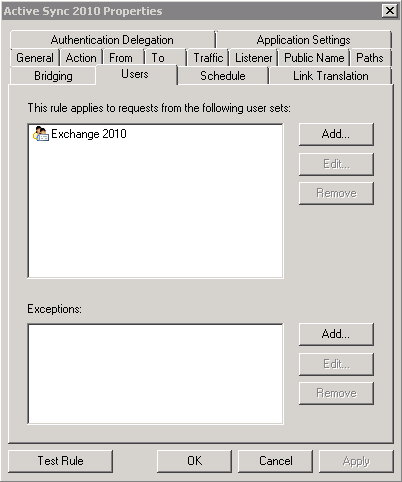
Second you make the Exchange 2010 group available in TMG

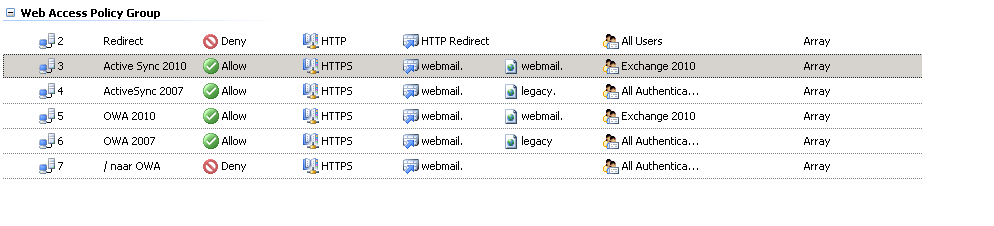
Third you make four rules 2 for Exchange 2010 (OWA & ActiveSync) and 2 for your legacy server of servers (OWA & ActiveSync)

Fourth makes sure that the Exchange 2010 rules are above the legacy rules.

Fith: You change on the Exchange 2010 rules the all authenticated users to Exchange 2010. (After the migration you delete the legacy rules and change on the 2010 rules the Exchange 2010 back to all authenticated users).

pdasync2010pic2

Sixth: When you do a mailbox move you puth the user in de Exchange 2010 group.
Why you thing. When the user is in the Exchange 2010 group the PDA wil use the Exchange 2010 rule. When there user is not in the Exchange 2010 group the legacy rule will do the trick.

I migrated at this way about 300 users with random pda’s and tablets with no downtime at all Knipogende emoticon

Screenshot from the TMG rules.
 pdasync2010pic1

VMware Workstation 2012 TechPreview

What’s new for Workstation?

  • Installation and operation of VMware Workstation on Windows 8 and Windows Server 8
  • Installation and operation of Windows 8 consumer preview and Windows Server 8 in a virtual machine
  • Rendering and graphics correctness issues on all platforms and applications
  • Linux 3D desktop experience, particularly when using the Ubuntu 12.04 LTS Beta
  • Linux 3D application graphics correctness and performance
  • Stability in real-world scenarios including suspend/resume and display and device support
  • Nested Virtualization – running ESX and even trying Hyper-V* as a guest OS
  • VNC connection performance and stability

Download

Microsoft Deployment Toolkit (MDT) 2012 RC1

The Solution Accelerators team released Microsoft Deployment Toolkit (MDT) 2012 RC1 is available for download on Connect now.

Download the MDT 2012 RC1 release now

New features and enhancements:

Support for Configuration Manager 2012 RC2: This update provides support for Configuration Manager 2012 RC2 releases. MDT 2012 fully leverages the capabilities provided by Configuration Manager 2012 for OS deployment. The latest version of MDT offers new User-Driven Installation components and extensibility for Configuration Manager 2007 and 2012. Users now also have the ability to migrate MDT 2012 task sequences from Configuration Manager 2007 to Configuration Manager 2012.

Customize deployment questions: For System Center Configuration Manager customers, MDT 2012 provides an improved, extensible wizard and designer for customizing deployment questions.

Ease Lite Touch installation: The Microsoft Diagnostics and Recovery Toolkit (DaRT) is now integrated with Lite Touch Installation, providing remote control and diagnostics. New monitoring capabilities are available to check on the status of currently running deployments. LTI now has an improved deployment wizard user experience. Enhanced partitioning support ensures that deployments work regardless of the current structure.

Secure Deployments: MDT 2012 offers integration with the Microsoft Security Compliance Manager (SCM) tool to ensure a secure Windows deployment from the start.

Reliability and flexibility: Existing MDT users will find more reliability and flexibility with the many small enhancements and bug fixes and a smooth and simple upgrade process.

Support for Windows 8: The RC1 release of MDT 2012 provides support for deploying Windows 8 Consumer Preview in a lab environment.

Key Benefits:

  • Full use of the capabilities provided by System Center Configuration Manager 2012 for OS deployment.
  • Improved Lite Touch user experience and functionality.
  • A smooth and simple upgrade process for all existing MDT users.

New Features:

For System Center Configuration Manager customers:

  • Support for Configuration Manager 2012 (while still supporting Configuration Manager 2007)
  • New User-Driven Installation components for Configuration Manager 2007 and Configuration Manager 2012
    • Extensible wizard and designer, additional integration with Configuration Manager to deliver a more customized OS experience, support for more imaging scenarios, and an enhanced end-user deployment experience
  • Ability to migrate MDT 2012 task sequences from Configuration Manager 2007 to Configuration Manager 2012

For Lite Touch Installation:

  • Integration with the Microsoft Diagnostics and Recovery Toolkit (DaRT) for remote control and diagnostics
  • New monitoring capabilities to see the progress of currently running deployments
  • Support for deploying Windows to computers using UEFIAbility to deploy Windows 7 so that the computer will start from a new VHD file, "Deploy to VHD"
  • Improved deployment wizard user experience

For all customers:

  • Integration with configuration templates from the Security Compliance Manager Solution Accelerator, ensuring Windows is secure from the start
  • A simple mechanism for running Windows PowerShell scripts during a deployment, with task sequence environment and logging integration
  • Better partitioning support, creating the recommended partitioning structures on new computers and ensuring deployments work regardless of the current structure
  • A smooth and simple upgrade process for all existing MDT users
  • Many small enhancements and bug fixes

Rollup 1 for Exchange Server 2010 SP2

The Exchange Team released Update Rollup 1 for Exchange Server 2010 SP2.

It’s a long list with issues that are fixed in this rollup:

  • 2465015 You cannot view or download an image on a Windows Mobile-based device that is synchronized with an Exchange Server 2010 mailbox
  • 2492066 An automatic reply message is still sent after you clear the "Allow automatic replies" check box for a remote domain on an Exchange Server 2010 server
  • 2492082 An Outlook 2003 user cannot view the free/busy information of a resource mailbox in a mixed Exchange Server 2010 and Exchange Server 2007 environment
  • 2543850 A GAL related client-only message rule does not take effect in Outlook in an Exchange Server 2010 environment
  • 2545231 Users in a source forest cannot view the free/busy information of mailboxes in a target forest in an Exchange Server 2010 environment
  • 2549255 A meeting item displays incorrectly as multiple all-day events when you synchronize a mobile device on an Exchange Server 2010 mailbox
  • 2549286 Inline contents disposition is removed when you send a "Content-Disposition: inline" email message in an Exchange Server 2010 environment
  • 2556113 It takes a long time for a user to download an OAB in an Exchange Server 2010 organization
  • 2557323 Problems when viewing an Exchange Server 2003 user’s free/busy information in a mixed Exchange Server 2003 and Exchange Server 2010 environment
  • 2563245 A user who has a linked mailbox cannot use a new profile to access another linked mailbox in an Exchange Server 2010 environment
  • 2579051 You cannot move certain mailboxes from an Exchange Server 2003 server to an Exchange Server 2010 server
  • 2579982 You cannot view the message delivery report of a signed email message by using Outlook or OWA in an Exchange Server 2010 environment
  • 2585649  The StartDagServerMaintenance.ps1 script fails in an Exchange Server 2010 environment
  • 2588121 You cannot manage a mail-enabled public folder in a mixed Exchange Server 2003 and Exchange Server 2010 environment
  • 2589982 The cmdlet extension agent cannot process multiple objects in a pipeline in an Exchange Server 2010 environment
  • 2591572 "Junk e-mail validation error" error message when you manage the junk email rule for a user’s mailbox in an Exchange Server 2010 environment
  • 2593011 Warning 2074 and Error 2153 are logged on DAG member servers in an Exchange Server 2010 environment
  • 2598985 You cannot move a mailbox from a remote legacy Exchange forest to an Exchange Server 2010 forest
  • 2599434 Public Folder Calendar folder is missing in the Public Folder Favorites list of an Exchange Server 2010 mailbox
  • 2599663 The Exchange RPC Client Access service crashes when you send an email message in an Exchange Server 2010 environment
  • 2600034 A user can still open an IRM-protected email message after you remove the user from the associated AD RMS rights policy template in an Exchange Server 2010 environment
  • 2600289 A user in an exclusive scope cannot manage his mailbox in an Exchange Server 2010 environment
  • 2600943 EMC takes a long time to return results when you manage full access permissions in an Exchange Server 2010 organization that has many users
  • 2601483 "Can’t open this item" error message when you use Outlook 2003 in online mode in an Exchange Server 2010 environment
  • 2604039 The MSExchangeMailboxAssistants.exe process crashes frequently after you move mailboxes that contain IRM-protect email messages to an Exchange Server 2010 SP1 mailbox server
  • 2604713 ECP crashes when a RBAC role assignee tries to manage another user’s mailbox by using ECP in an Exchange Server 2010 environment
  • 2614698  A display name that contains DBCS characters is corrupted in the "Sent Items" folder in an Exchange Server 2010 environment
  • 2616124 Empty message body when replying to a saved message file in an Exchange Server 2010 SP1 environment
  • 2616230 IMAP4 clients cannot log on to Exchange Server 2003 servers when the Exchange Server 2010 Client Access server is used to handle proxy requests
  • 2616361 Multi-Mailbox Search fails if the MemberOfGroup property is used for the management scope in an Exchange Server 2010 environment
  • 2616365 Event ID 4999 when the Store.exe process crashes on an Exchange Server 2010 mailbox server
  • 2619237 Event ID 4999 when the Exchange Mailbox Assistants service crashes in Exchange 2010
  • 2620361 An encrypted or digitally-signed message cannot be printed when S/MIME control is installed in OWA in an Exchange Server 2010 SP1 environment
  • 2620441 Stop-DatabaseAvailabilityGroup or Start-DatabaseAvailabilityGroup cmdlet fails when run together with the DomainController parameter in an Exchange Server 2010 environment
  • 2621266 An Exchange Server 2010 database store grows unexpectedly large
  • 2621403 "None" recipient status in Outlook when a recipient responds to a meeting request in a short period of time in an Exchange Server 2010 environment
  • 2628154 "The action couldn’t be completed. Please try again." error message when you use OWA to perform an AQS search that contains "Sent" or "Received" in an Exchange Server 2010 SP1 environment
  • 2628622 The Microsoft Exchange Information Store service crashes in an Exchange Server 2010 environment
  • 2628693 Multi-Mailbox Search fails if you specify multiple users in the "Message To or From Specific E-Mail Addresses" option in an Exchange Server 2010 environment
  • 2629713 Incorrect number of items for each keyword when you search for multiple keywords in mailboxes in an Exchange Server 2010 environment
  • 2629777  The Microsoft Exchange Replication service crashes on Exchange Server 2010 DAG members
  • 2630708  A UM auto attendant times out and generates an invalid extension number error message in an Exchange Server 2010 environment
  • 2630967A journal report is not sent to a journaling mailbox when you use journaling rules on distribution groups in an Exchange Server 2010 environment
  • 2632206 Message items rescanned in the background in an Exchange Server 2010 environment
  • 2633044 The Number of Items in Retry Table counter displays an incorrect value that causes SCOM alerts in an Exchange Server 2010 SP1 organization
  • 2639150 The MSExchangeSyncAppPool application pool crashes in a mixed Exchange Server 2003 and Exchange Server 2010 environment
  • 2640218 The hierarchy of a new public folder database does not replicate on an Exchange Server 2010 SP1 server
  • 2641077 The hierarchy of a new public folder database does not replicate on an Exchange Server 2010 SP1 server
  • 2642189 The RPC Client Access service may crash when you import a .pst file by using the New-MailboxImportRequest cmdlet in an Exchange Server 2010 environment
  • 2643950 A seed operation might not succeed when the source mailbox database has many log files in a Microsoft Exchange Server 2010 DAG
  • 2644047 Active Directory schema attributes are cleared after you disable a user’s mailbox in an Exchange Server 2010 environment
  • 2644264 Disabling or removing a mailbox fails in an Exchange Server 2010 environment that has Office Communications Server 2007, Office Communications Server 2007 R2 or Lync Server 2010 deployed
  • 2648682 An email message body is garbled when you save or send the email message in an Exchange Server 2010 environment
  • 2649727 Client Access servers cannot serve other Mailbox servers when a Mailbox server encounters a problem in an Exchange Server 2010 environment
  • 2649734 Mailbox replication latency may occur when users perform a Multi-Mailbox Search function against a DAG in an Exchange Server 2010 environment
  • 2649735 Warning of undefined recipient type of a user after the linked mailbox is moved from an Exchange Server 2007 forest to an Exchange Server 2010 forest
  • 2652849 The MailboxCountQuota policy is not enforced correctly in an Exchange Server 2010 hosting mode
  • 2665115 Event ID 4999 is logged on an Exchange Server 2010 Client Access server (CAS)

Download the rollup at HERE

Exchange 2010: Setting Static RPC ports when using a Kemp LoadMaster

When you use a Kemp LoadMaster for Loadbalacing Exchange 2010 you need to set static RPC ports.

By default Windows Server 2008 and 2008 R2 are configured with a dynamic RPC range of 49152-65535 for outbound connections. When the Exchange 2010 Client Access server role is installed on Windows Server 2008 or 2008 R2, the dynamic RPC port range is changed to 6005-59530 and the highest usable port number is set to 60554.

Exchange 2010 RPC Client Access Service

By default the RPC Client Access service on an Exchange 2010 Client Access server uses the TCP End Point Mapper port (TCP/135) and the dynamic RPC port range (6005-59530) for outgoing connections, every time an Outlook clients establish a connection to Exchange.

To set a static port for the RPC Client Access service on an Exchange 2010 Client Access server, you need to open the registry on the respective server and navigate to:

HKEY_LOCAL_MACHINE\SYSTEM\CurrentControlSet\services\MSExchangeRPC

Here, you need to create a new key named ParametersSystem, and under this key create a REG_DWORD named TCP/IP Port. The Value for the DWORD should be the port number you want to use.

Configuring static ports for the RPC Client Access service

RPC.reg
Windows Registry Editor Version 5.00

[HKEY_LOCAL_MACHINE\SYSTEM\CurrentControlSet\services\MSExchangeRPC\ParametersSystem]
"TCP/IP Port"=dword:0000e88c

Note

Microsoft recommends you set this to a unique value between 59531 and 60554 and use the same value on all CAS in any one AD site.

When you’ve configured the port, it’s required to restart the Microsoft Exchange RPC Client Access service in order for the changes to be applied.

Exchange 2010 Address Book Service

To set a static RPC port for the Exchange Address Book Service, create a new REG_SZ registry key named “RpcTcpPort” under:

HKEY_LOCAL_MACHINE\SYSTEM\CurrentControlSet\services\MSExchangeAB\Parameters


RPCAB.reg

Windows Registry Editor Version 5.00

[HKEY_LOCAL_MACHINE\SYSTEM\CurrentControlSet\services\MSExchangeAB\Parameters]
"RpcTcpPort"="59533"

Microsoft recommends you set this to a unique value between 59531 and 60554 and use the same value on all Exchange 2010 Client Access servers in any one AD site.

When you’ve configured the port, it’s required to restart the Microsoft Exchange Address Book service in order for the changes to be applied.

Exchange 2010 Public Folder connections

By default public folder connections uses the TCP End Point Mapper (TCP/135) and the dynamic RPC port range (49152-65535) for outgoing connections, every time an Outlook client establish a connection to Exchange.

To set a static port for public folder connections, follow the same steps as those required for configuring static ports for the RPC CA service. Just bear in mind you need to perform them on the Exchange 2010 servers that stores public folder databases. This is because public folder connections from an Outlook client occur against the RPC Client Access service on the Mailbox server role.

Verifying the Statically Configured Ports are used

In order to verify that the static ports configured are used, the netstat.exe tool can be used:

Netstat -an -p tcp

image
Verifying the configured static ports are used on the Client Access and Mailbox servers
In my next blog post I will show how to config a Kemp Loadmaster.

Reference:
Link: Configure Static RPC Ports on an Exchange 2010 Client Access Server

Setup KMS Server for Windows Server 2008 R2 or Windows 7

Open the command prompt and run the following command:

cscript c: \ Windows \ System32 \ slmgr.vbs / ipk xxxxx-xxxxx-xxxxx-xxxxx-xxxxx

Enter the product key xxxxx Windows Server 2008 R2. It is also able to activate Windows 7. The following text appears when the command is successful.

Microsoft ® Windows Script Host Version 5.7
Copyright © Microsoft Corporation. All rights reserved.
Installed product key xxxxx-xxxxx-xxxxx-xxxxx-xxxxx successfully.
The installation of the KMS server is complete. The server installs itself on port 1688. This port must be opened to be put in the firewall. To change the port the following command can be used.

Slmgr.vbs / SPRT xxxx
Once the firewall is open and the key is installed, the KMS server service has to be restarted. Do this by using the following command:

slsvc & net stop & net start slsvc

To check whether the data will be registered correctly in the DNS, the following command:

nslookup-type = srv _vlmcs._tcp

Here, the following output should appear:

_vlmcs._tcp.test.local SRV service location:
priority = 0
weight = 0
port = 1688
svr hostname = kms.wardvissers.local
internet address = 192.168.150.7 kms.wardvissers.local

Clients / Servers

The clientele / servers need to connect to the KMS host will automatically find the host by dns. When the client / server using a MAK key is activated. Should this be put back to a KMS client key. These keys are released by Microsoft. When this key is set on the client / server will automatically look for a KMS host. When not present, the client / server activation.

KMS client keys:

Windows 7 Enterprise: 33PXH-7Y6KF-2VJC9-XBBR8-HVTHH
Windows Server 2008 Standard: TM24T-X9RMF-VWXK6-X8JC9-BFGM2
Windows Server 2008 Enterprise: YQGMW-MPWTJ-34KDK-48M3W-X4Q6V
Windows Server 2008 R2 Standard – YC6KT-GKW9T-YTKYR-T4X34-R7VHC
Windows Server 2008 R2 Enterprise – 489J6-VHDMP-X63PK-3K798-CPX3Y

The following commands can the key be changed from MAK to KMS here are the xxxxx is one of the above keys.

slmgr.vbs / ipk xxxxx-xxxxx-xxxxx-xxxxx-xxxxx
Note: To ensure that the client is forced to activate the command to be executed on the client.
slmgr-ato

It can happen that the RMS server returns the following message. This is because the KMS server is just beginning to work with 25 clients and 5 servers.

You can find here the list with error codes & solutions: http://support.microsoft.com/kb/938450

Special thanks to:Harm Hoekstra

Exchange 2010 Outlook Mobile Update

This guide was created to help you deploy the new Outlook Mobile update for the Windows Mobile 6.1 devices that connect to your Exchange 2010 servers. This guide focuses on Microsoft Exchange Server 2010 RTM & SP1 & SP2 and Windows Mobile 6.1, and covers the following topics:

· Overview

· How to configure your Exchange 2010 for the Outlook Mobile update

· Details about the Outlook Mobile update

· How to get support for Outlook Mobile updates

· How to subscribe for future updates

Overview

First, we’ll review the overall update experience that’s built into Exchange 2010.

clip_image002

As part of the Outlook Mobile update, users will receive an update notification in an e-mail message in their Inbox. The purpose of this message is to inform them that there’s an Outlook Mobile update for their phone.

The message will instruct the user to click an inline link. This prompts the phone to download the Initial Setup CAB. After the Initial Setup CAB is installed, it will check for available updates specific to the user’s device type.

Next, if an Outlook Mobile update is available, it will be downloaded and installed. The user will receive a notification message that tells them they need to restart their device. After the device is restarted, it will resynchronize the data (e-mail, calendar, contacts, and tasks) with the Exchange server so it will be compatible with the new format of Exchange Server 2010. After that synchronization is complete, the user will be ready to experience the new features in the Outlook Mobile update.

How to Configure Your Exchange 2010 Server for the Outlook Mobile Update

Now that you understand the tasks that the Outlook Mobile update performs, we’ll cover how to configure your Exchange server so that your users who have Windows Mobile 6.1 devices will receive the update notification e-mail message.

How to determine whether a user will receive the update notification e-mail message

The update notification e-mail message will be sent to the user’s device if the following conditions are true:

· The user’s mailbox is on a server running Exchange Server 2010.

· The Exchange ActiveSync mailbox policy parameter AllowMobileOTAUpdate is set to $True.

· The Windows Mobile OS version is 6.1. To check which version the device is running, from the Help About screen, look for the OS and Windows Mobile 6.1 build number (Start > Settings > System > About). You should see Windows OS = “Windows CE 5.2”, and the Windows mobile build should be between 19202 and 21142.

AllowMobileOTAUpdate

The AllowMobileOTAUpdate setting is one of the standard Exchange ActiveSync mailbox policy settings. This is the main setting that determines whether the update notification e-mail message is sent to the device.

The default value for the AllowMobileOTAUpdate parameter is enabled ($True). To confirm that your Exchange ActiveSync mailbox policy has this setting enabled, follow these steps:

1. Check which policy the user is assigned to by running the following command.

Get-CasMailbox <user> | fl ActiveSyncMailboxPolicy

In the preceding example, the result is the following.

ActiveSyncMailboxPolicy : Default

2. Check that the policy returned in the preceding step has the AllowMobileOTAUpdate setting enabled by running the following command.

Get-ActiveSyncMailboxPolicy Default | fl AllowMobileOTAUpdate

If the AllowMobileOTAUpdate setting is set to $True, the following will be returned.

AllowMobileOTAUpdate : True

Details About the Outlook Mobile Update

The following section covers the end user experience for the Outlook Mobile update. The update notification e-mail message the user receives will look like this.

clip_image004

The user can click the first link in the message to start the download. This downloads the initial setup CAB, which is necessary to find the appropriate Outlook Mobile update for that user’s device.

Next, the user will see a URL Confirmation page that informs them that they’re being taken to a Web site. The user should click Yes to continue. Clicking No will cancel the update process.

clip_image006

After the file begins downloading, the user will be asked if they want to open the file, save it to a location, or click Cancel. The user should click Yes to continue opening the file, making sure that the open file after download box is selected.

clip_image008

The next screen they’ll see is the progress bar that shows that the initial setup CAB is being downloaded and installed.

clip_image010

The initial setup CAB finds the appropriate Outlook Mobile update for the user’s specific device. After the initial setup CAB is installed, it connects to the Outlook Mobile Update Service to find the update. If an update is found, the user will be asked if they want to download the Outlook Mobile update. The user should select Yes to download and install the update.

clip_image012clip_image014

clip_image016clip_image018

After the Outlook Mobile update has been installed, the user needs to restart their device to ensure that all new Outlook Mobile files loaded correctly.

clip_image020

After the user restarts their device, they’re presented with a warning message that informs them that they need to resynchronize their data with Exchange. This is necessary because the existing format of the synchronized data isn’t compatible with the new features built into Exchange Server 2010. The user should click Yes in this warning message box.

clip_image022

Occasionally, a user may see the following error, which can appear when the resynchronization hasn’t yet occurred. The user will need to manually resync their data with Exchange.

clip_image024

How to Subscribe for Future Updates

There may be updates available for your users’ Windows Mobile 6.1 phones in the future. The Outlook Mobile update package will ask users if they would like Outlook Mobile to automatically check for updates on a regular schedule. Users should click Yes to automatically check for updates and receive notification when new updates are available.

clip_image026

Translate »