Internet Explorer Stops Randomly when using TMG als proxy or Error 502 The number of HTTP requests per minute exceeded the configured limit.

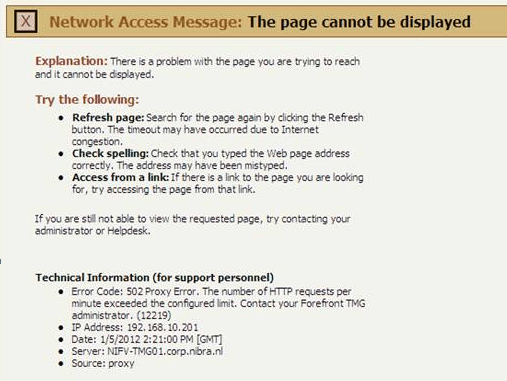
Some users report that Internet stops Randomly. After investing i say the following error:

image

On the TMG Management server I saw also the The number of HTTP requests per minute exceeded the configured limit.

Solution:

1. Open TMG Management Console

clip_image001
2. Go Intrusion Prevention System

3. Flood Mitigation
clip_image002

4. Click on the Edit button: The number of HTTP requests per minute exceeded the configured limit
clip_image003
Default = 600 I configured = 3000

Exchange 2007 & 2010: Current issues with Microsoft Exchange ActiveSync and Third Party Devices

The following is a list of current issues observed by Microsoft Support personnel for Exchange Server 2007 and Exchange Server 2010 with third-party vendor devices. If you are using Exchange Server 2007 SP3 or Exchange Server 2010 SP1 and you are experiencing an EAS issue not listed below, contact Microsoft Support Services to investigate the issue.

1. Automatic meeting processing

Issue 1.1 – Recurring meeting is removed from calendar when organizer cancels single occurrence

When you synchronize your iOS device by using Exchange ActiveSync on an Exchange Server 2007 mailbox, if the organizer cancels a single occurrence of a recurring meeting, the device may unexpectedly delete the entire recurring meeting.

Solution

There are two parts to this solution:

Install the Exchange Server 2007 Service Pack 3 (SP3) update rollup 4 (RU4). The problem details and the link to the update are documented in the following Microsoft Knowledge Base article:

2502276 A meeting request series are deleted unexpectedly from the calendar in an Exchange Server 2007 environment

Update the Apple iOS on your device to version 4.3 or later. For more details on the latest iOS version, click the following link:

http://www.apple.com/ios

Apple has documented the issue at the following web site:

http://support.apple.com/kb/ts3714

Issue 1.2 – Attendee becomes meeting organizer

When you synchronize your iOS or Android device by using Exchange ActiveSync on an Exchange Server 2007 mailbox, you may unexpectedly become the organizer for a meeting that you were invited to. This does not change the meeting for all attendees.

Solution

This can occur if you change the reminder for a single occurrence of a recurring meeting on an iOS or Android device. There may be other property changes to meeting items that may result in the same symptom.

This issue is resolved in Rollup Update 4 for Exchange Server 2007 Service Pack 3. See the KB article below for additional information.

2521063 You are incorrectly displayed as a meeting organizer after you synchronize the meeting by using your mobile device in an Exchange Server 2007 environment

Note Affected meetings must be deleted and replacement meetings must be created after the servers are patched.

Issue 1.3 – Your meeting response to the organizer appears to have been sent by someone else

When you respond to an Exchange ActiveSync (EAS) meeting invitation, the meeting originator may see someone else’s name displayed as having accepted the invitation instead of you.

Solution

Ensure the Apple iOS on your device is version 4.3 or later. For more details on the latest iOS version, click the following link:

http://www.apple.com/ios

This was fixed by Apple in iOS 3.1. For more details, visit the following Apple web site:

iPhone and iPod touch: My replies to Exchange ActiveSync invitations seem to come from someone else

http://support.apple.com/kb/TS2806

Issue 1.4 – All Day Flag is not set properly on Mobile devices when meeting is scheduled cross multiple days

Mobile device clients do not treat a meeting request as an all day event meeting request. Additionally, the All Day field is marked with "No".

Solution

This issue is resolved in Exchange 2007 Service Pack 3 Rollup 2. The problem is documented in the following articles from the Microsoft Knowledge Base online:

2201236  The "All Day" field is marked with "No" when you access a meeting request that has a duration time that is more than 24 hours by using a mobile client through ActiveSync in an Exchange Server 2007 environment

2201236  Description of Update Rollup 2 for Exchange Server 2007 Service Pack 3

Issue 1.5 – Recurring Exchange calendar events deleted

In some situations, recurring calendar events can be removed from both the iOS device and Exchange when the organizer cancels an event instance.

Solution

This issue is resolved by Apple iOS 4.3, and impacts only the 4.2.6 and earlier versions. Apple has documented the issue at the following web site:

iOS: Recurring Exchange calendar events deleted

https://support.apple.com/kb/ts3714

Issue 1.6 – Appointment exceeding 24 hours changed to multiple day All Day Event

When an appointment item’s duration exceeds 24 hours, but is not marked as an All Day Event, Exchange ActiveSync changes the item on the device to become a multi-day All Day Event. The next time that the device synchronizes with the mailbox, the change is propagated from the item on the device to the item on the Exchange Server 2010 mailbox.

Solution

Microsoft is investigating this issue. This problem can occur when using any ActiveSync device synchronizing with Exchange Server 2010.

2. Connectivity and synchronization failures

Issue 2.1 – Failures to Provision and Synchronize with Android OS

EAS policies can cause provisioning and synchronization to fail, when customized. Devices will not be provisioned if a policy is applied to the users of these devices that exceeds these limitations. This is discussed in comment 9 from the following post on Google’s Android forum:

http://code.google.com/p/android/issues/detail?id=9426

"We only support the basic (EAS 2.5) features in Froyo. So if your server requires, for example, password history or expiration, or complex characters, then it won’t be provisionable in Froyo. Our goal is to provide more policy support in future versions, but for now we support – password (PIN/alpha), minimum characters, max. fails to wipe, inactivity timeout, and remote wipe."

Solution

Updates to the Android OS version appear to resolve this problem. We encourage device users to update to the latest version available from their provider and follow vendor forums on synchronization issues. If the decision is made to allow older devices in the organization, Administrators can canvass device users, or use tools Log Parser or Export-ActiveSyncLog, to ensure that such devices are identified in the organization. Users of older devices can be grouped into a policy that can work for them.

Issue 2.2 – Unable to connect using Exchange ActiveSync due to Exchange resource consumption

There are several symptoms and remediation methods for issues with resource depletion caused by devices connecting with Exchange ActiveSync.

Solution

Administrators should review the following article in the Microsoft Knowledge Base to determine if they are experiencing the same server symptoms:

2201236  Unable to connect using Exchange ActiveSync due to Exchange resource consumption

Note This article also describes a known issue with iOS 4.0, defined by user agent 801.293 – http://support.apple.com/kb/TS3398 and is discussed in Issue 2.5, below.

Issue 2.3 – "This message has not been downloaded from the server" error when trying to open a message

You synchronize your Exchange Server mailbox with your iOS device. When you try to open a message on the iOS device, the following error may be displayed:

This message has not been downloaded from the server

Solution

You must configure the Accepted Domain using Exchange Management Shell. Use the steps in item #7 in the following post from the Exchange Team Blog:

Exchange 2010 SP1 FAQ and Known Issues

http://blogs.technet.com/b/exchange/archive/2010/09/01/3410888.aspx

This issue is being reviewed by the Microsoft Exchange product team.

Issue 2.4- You receive a synchronization failed email message when you synchronize your mobile device

When you synchronize your mobile device by using ActiveSync on an Exchange Server 2010 mailbox, you receive a synchronization failed email message similar to the following:

From: Microsoft Exchange on Behalf of <user>

Sent: <date>

To: <other user>

Subject: Synchronization with your <ActiveSync device> failed for 1 items.

Synchronization with your <ActiveSync device> failed for 1 items.

Microsoft Exchange was unable to send the following items to your mobile device. These items have not been deleted. You should be able to access them using either Outlook or Outlook Web Access.

Item Folder: Inbox

Item Type: IPM.Schedule.Meeting.Resp.Pos

Solution

This issue is described in the following article in the Microsoft Knowledge Base:

2201236 You receive a synchronization failed email message when you synchronize your mobile device by using ActiveSync on an Exchange Server 2010 mailbox

To resolve this issue, install the following update rollup:

2201236 Description of Update Rollup 3 for Exchange Server 2010 Service Pack 1

Issue 2.5- Users are unable to synchronize Apple iPhone iOS 4.0 with the Exchange Server mailbox

Immediately after updating to iOS 4.0, some users may notice that Exchange ActiveSync Mail, Contacts, or Calendars do not sync, or sync very slowly. In addition, some Exchange Server administrators may notice their servers running slowly. This problem is also discussed in Issue 2.2, above.

Solution

Update the device to a later iOS version. Apple has documented the issue at the following web site:

iOS 4.0: Exchange Mail, Contacts, or Calendars may not sync after update

http://support.apple.com/kb/TS3398

Issue 2.6- ActiveSync does not work for mobile device users connecting to Exchange Server 2007 mailboxes after swapping URLs between Exchange Server 2010 and 2007

This problem occurs because the device is unable to properly redirect a user whose mailbox has been moved. The 451 redirect response to the device is not properly interpreted.

Solution

Typically, this issue is resolved by device updates to the latest operating system. Verify the following:

Verify that you have configured the LegacyURL for Exchange 2007 users. This will automatically switch the URL for the user to the appropriate target on the device. See the following blog topic:

http://blogs.technet.com/b/jribeiro/archive/2009/11/26/transitioning-from-an-exchange-2007-environment-to-exchange-2010.aspx

This has been reported for several device types, to include iOS and Android operating system. If the problem is noted with the latest version of the device operating system, and the LegacyURL is correctly established and working for other devices, consult with the device vendor’s technical support.

If you are using an Apple iOS device, update the device to the iOS version 4.3.2.

Note In migrations where the mailbox moves are between different forests, a 451 is not sent. The reason for this is that the old server does not know of the new endpoint for connectivity. In such circumstances, the device must be manually reconfigured.

Check: http://support.microsoft.com/kb/2563324

You cannot close the EMC window on a computer that has Internet Explorer 9 installed

Microsoft released the official fix for: You cannot close the EMC window on a computer that has Internet Explorer 9 installed. Windows Internet Explorer 9 installed, you start the Exchange Management Console (EMC). After you make a change and then try to close the EMC window, the window does not close. Additionally you receive the following message:
image_thumb1

You must close all dialog boxes before you can close Exchange Management Console.

Download: KB2618444 Cumulative Security Update for Internet Explorer: December 13, 2011

MDT 2012: New Features – Hide Shell

Here is a common scenario. You are deploying an operating system using MDT Lite Touch, during the deployment you install some user specific applications. However the users think that the deployment is completed an they close the application installs or perhaps start messing with the machine while it is still logged in as the local administrator. Now you could simply inform the user that they should not touch the computer until the deployment is completed. However in my experience this “don’t touch” approach has not always been 100% successful.

Well now we have a better way, you can hide explorer shell while MDT is “doing it’s thing”!

So how do we do this? It is simple, just add the following line to the customsettings.ini file:

HIDESHELL=YES

I have included before and after shots below:

Look explorer…

,image

No explorer…. that’s better!

image

Glimlach

Exchange 2010 SP2 RTM

Exchange Server 2010 Service Pack 2 (SP2) has been released, raising the Exchange version number to 14.2.247.5. You can download Exchange 2010 SP2 here.

For those still unaware, the 530Mb+ file (1,4 GB extracted) contains the full set of binaries; you can use it to upgrade existing RTM or SP1 installations or deploy new Exchange 2010 SP2 installations.

Besides the usual set of hotfixes, SP2 introduces the following features:

Address Book Policies
Address Book Policies, also known as GAL segmentation, ABPs are meant to segmentize the address book, giving users a certain view of the address book like Address List Segregation did for Exchange 2003/2007.

OWA mini
This will be a lightweight browser like OMA in the past, meant for simple browsers.

Hybrid Configuration
This wizard is to make the configuration of an on-premise Exchange and Office 365/Exchange Online more simple, reducing the steps required from 49 to 6.

OWA Cross-Site redirection
This will allow clients to be silently redirected to the proper site if they log on to a CAS server located in a site different than the site where their mailbox is hosted and externalURL has been specified there.

After preparing your forest for Exchange 2010 SP2, the schema version number will have changed. Check the Schema Versions page for information on the new ObjectVersion and RangeUpper values for Exchange 2010 SP2.

Note that SP2 introduces an additional requirement, which is the IIS 6 WMI Compatibility feature; you can add this feature using the GUI or by using the Powershell cmdlets Import-Module ServerManager followed by Add-WindowsFeature Web-WMI.

The proper method to upgrade mailbox servers that are a member of a Database Availability Group is described here.

The releases notes are not available at time of writing; we’ll update this post when they become available.

MDT 2012 Beta 2 Monitoring

Today I upgraded a MDT 2010 installation to MDT 2012 Beta 2.

One of the new features is monitoring Glimlach

To Configure monitoring you find a tab Monitoring on properties of the Deployment Share.
You must set a V Enable monitoring of this deployment share

image

Under the root of the Deployment Share u see now Monitoring. When you click on Monitoring you can see running deployments.

image

MDT 2012 Beta 2 Released

The latest version of MDT is now available on Connect (Join the MDT 2012 Beta 2 Connect program here!)

MDT 2012 Beta 2 offers new User-Driven Installation components and extensibility for Configuration Manager 2007 and Configuration Manager 2012 as well as integration with the Microsoft Diagnostics and Recovery Toolkit (DaRT) for Lite Touch Installation remote control and diagnostics.

Key benefits include:

  • Full use of the capabilities provided by System Center Configuration Manager 2012 for OS deployment.
  • Improved Lite Touch user experience and functionality.
  • A smooth and simple upgrade process for all existing MDT users.

New features For System Center Configuration Manager customers:

  • Support for Configuration Manager 2012 (while still supporting Configuration Manager 2007)
  • New User-Driven Installation components for Configuration Manager 2007 and Configuration Manager 2012
    • Extensible wizard and designer, additional integration with Configuration Manager to deliver a more customized OS experience, support for more imaging scenarios, and an enhanced end-user deployment experience
  • Ability to migrate MDT 2012 task sequences from Configuration Manager 2007 to Configuration Manager 2012

New features For Lite Touch Installation:

  • Integration with the Microsoft Diagnostics and Recovery Toolkit (DaRT) for remote control and diagnostics
  • New monitoring capabilities to see the progress of currently running deployments
  • Support for deploying Windows to computers using UEFI
  • Ability to deploy Windows 7 so that the computer will start from a new VHD file, “Deploy to VHD”
  • Improved deployment wizard user experience

MDT 2012 the final release will be available download through to January 2012 I think.

VMware View XP persistent disk can not save outlook.ost c:\document and settings\…..

I’m busy with created a new a new pool with presentment disks.

The View desktops we’ve got setup are using linked clones and persistent disks which map to the D:\ in the users sessions. Of course this means the users profile is loaded to the D:\ instead of C:\ in the virtual desktops. My issue is, when a new users comes from our old environment into the test view setup, their Outlook is trying to find their OST file on the C:\ (c:\document and settings\…etc). The users data has been loaded to the D:\ though. The only way I’ve found to get around this is going into the Contol Panel in the users session, deleting their Outlook profile,

Solution:

Microsoft saves information about profile under HKEY_CURRENT_USER\Software\Microsoft\Windows NT\CurrentVersion\Windows Messaging Subsystem\Profiles\Outlook

So, within regedit, I right-clicked on HKEY_CURRENT_USER\Software\Microsoft\Windows NT\CurrentVersion\Windows Messaging Subsystem\Profiles\Outlook then chose Export. For Save as Type, I changed the value to "Text Files (*.txt)". I then opened the text file I created with Notepad. You can’t just search for "Outlook.ost", since there are null, i.e. 00, characters stored between each character. They show up in an ASCII representation as dots. E.g. Outlook.ost would be O.u.t.l.o.o.k…o.s.t.

Since the "Outlook.ost" could be broken across multiple lines, I decided just to search for o.s.t. I found the following in the text file I had created.

Value 31

  Name:            001f6610

  Type:            REG_BINARY

  Data:           

00000000   43 00 3a 00 5c 00 44 00 – 6f 00 63 00 75 00 6d 00  C.:.\.D.o.c.u.m.

00000010   65 00 6e 00 74 00 73 00 – 20 00 61 00 6e 00 64 00  e.n.t.s. .a.n.d.

00000020   20 00 53 00 65 00 74 00 – 74 00 69 00 6e 00 67 00   .S.e.t.t.i.n.g.

00000030   73 00 5c 00 4a 00 69 00 – 6d 00 5c 00 4c 00 6f 00  s.\.J.i.m.\.L.o.

00000040   63 00 61 00 6c 00 20 00 – 53 00 65 00 74 00 74 00  c.a.l. .S.e.t.t.

00000050   69 00 6e 00 67 00 73 00 – 5c 00 41 00 70 00 70 00  i.n.g.s.\.A.p.p.

00000060   6c 00 69 00 63 00 61 00 – 74 00 69 00 6f 00 6e 00  l.i.c.a.t.i.o.n.

00000070   20 00 44 00 61 00 74 00 – 61 00 5c 00 4d 00 69 00   .D.a.t.a.\.M.i.

00000080   63 00 72 00 6f 00 73 00 – 6f 00 66 00 74 00 5c 00  c.r.o.s.o.f.t.\.

00000090   4f 00 75 00 74 00 6c 00 – 6f 00 6f 00 6b 00 5c 00  O.u.t.l.o.o.k.\.

000000a0   6f 00 75 00 74 00 6c 00 – 6f 00 6f 00 6b 00 2e 00  o.u.t.l.o.o.k…

000000b0   6f 00 73 00 74 00 00 00 -                          o.s.t…

I could also have searched in the .reg file I created when I exported the registry information from the other computer. But, again, you can’t just search for "Outlook.ost" in the .reg file you created, either, since the information in it is the hexadecimal representation of the binary data in the registry keys. You would need to convert a string, such as "ost" to hexadecimal form. You can do that at String – ASCII, HEX, Binary Converter. In the String field, I put in ost. The converter showed me the equivalent hex value is 6F 73 74. Note: the converter shows decimal/ASCII, binary, and hex values. Make sure you use the correct one. Also note that the hexadecimal representation of "OST" is not the same as "ost". Since the error message I received referred to Outlook.ost, I converted "ost" to hexadecimal. Again, it may be better to limit the length of the string to reduce the chance it will be broken across multiple lines in the file.

Once you have the hexadecimal equivalent of the ASCII string, you still can’t just search for it, i.e. a search for 6F7374 wouldn’t work. The hexadecimal numbers are stored in the .reg file with commas and the null character, 00, between them. I.e., I would need to search for 6f,00,73,00,74 instead.

In the .reg file found it among the following lines:

"001f6610"=hex:43,00,3a,00,5c,00,44,00,6f,00,63,00,75,00,6d,00,65,00,6e,00,74,\

  00,73,00,20,00,61,00,6e,00,64,00,20,00,53,00,65,00,74,00,74,00,69,00,6e,00,\

  67,00,73,00,5c,00,4a,00,69,00,6d,00,5c,00,4c,00,6f,00,63,00,61,00,6c,00,20,\

  00,53,00,65,00,74,00,74,00,69,00,6e,00,67,00,73,00,5c,00,41,00,70,00,70,00,\

  6c,00,69,00,63,00,61,00,74,00,69,00,6f,00,6e,00,20,00,44,00,61,00,74,00,61,\

  00,5c,00,4d,00,69,00,63,00,72,00,6f,00,73,00,6f,00,66,00,74,00,5c,00,4f,00,\

  75,00,74,00,6c,00,6f,00,6f,00,6b,00,5c,00,6f,00,75,00,74,00,6c,00,6f,00,6f,\

  00,6b,00,2e,00,6f,00,73,00,74,00,00,00

I noticed it was associated with a "001f6610" entry. When I had searched the text file, I had also seen Outlook.ost associated with "Name: 001f6610".

You can delete the following registry key with group policy preferences to disable using Offline Folders after disabling Use Cached Mode in Group Policy:

HKCU\Software\Microsoft\Windows NT\CurrentVersion\Windows Messaging Subsystem\Profiles\Outlook\13dbb0c8aa05101a9bb000aa002fc45a\001f6610
Rollup 6 for Exchange Server 2010 Service Pack 1

The Exchange CXP team released Update Rollup 6 for Exchange Server 2010 SP1 to the Download Center.

This update contains a number of customer-reported and internally found issues since the release of SP1. See ‘KB 2608646: Description of Update Rollup 6 for Exchange Server 2010 Service Pack 1’ for more details.

This update contains a number of customer reported and internally found issues since the release of RU5.

The most Important Fixes:

  • 2627769 Some time zones in OWA are not synchronized with Windows in an Exchange Server 2010 environment
  • 2528854 The Microsoft Exchange Mailbox Replication service crashes on a computer that has Exchange Server 2010 SP1 installed
  • 2544246 You receive a NRN of a meeting request 120 days later after the recipient accepted the request in an Exchange Server 2010 SP1 environment
  • 2616127 "0x80041606" error code when you use Outlook in online mode to search for a keyword against a mailbox in an Exchange Server 2010 environment.
  • 2549183 "There are no objects to select" message when you try to use the EMC to specify a server to connect to in an Exchange Server 2010 SP1 environment

Other Fixes:

  • 2431609 An update is available that updates the message of a retention policy in OWA for Exchange Server 2010
  • 2449266 EWS drops the TCP connection to the EWS client application without any error message in a Microsoft Exchange Server 2010 environment
  • 2480474 A Users do not receive quota warning messages after applying SP1 for Exchange 2010
  • 2514820 An incoming fax message is not delivered to the recipient in an Exchange Server 2010 SP1 environment
  • 2521927 Disabling the Exchange ActiveSync Integration feature for OWA does not take effect in OWA Premium clients in an Exchange Server 2010 environment
  • 2535289 The Microsoft Exchange Information Store service crashes occasionally when you run an antivirus application on an Exchange Server 2010 Mailbox server
  • 2536313 Slow message delivery and mailbox access for journaling mailboxes on an Exchange Server 2010 server
  • 2548246 The Microsoft Exchange Information Store service crashes occasionally when a folder view is corrupted on an Exchange Server 2010 mailbox server
  • 2549289 A RBAC role assignee can unexpectedly run the Add-MailboxPermission command or the Remove-MailboxPermission command on an Exchange Server 2010 server that is outside the role assignment scope
  • 2555851 A mailbox does not appear in certain address lists after you run commands on the mailbox in an Exchange Server 2010 SP1 environment
  • 2559814 A user cannot add or remove delegates from a mailbox by using Outlook in an Exchange Server 2010 environment
  • 2561514 Exchange Server 2003 user cannot view the free/busy information of a user in a different federated organization
  • 2563860 You cannot create a new mailbox database if you already have 1000 mailbox databases in an Exchange Server 2010 environment
  • 2567409 Certain free/busy messages are not replicated from an Exchange Server 2010 server to an Exchange Server 2003 server
  • 2571791 Retention policies are applied to Contact items unexpectedly in an Exchange Server 2010 environment
  • 2572052 Certain properties of a recurring meeting request from external email accounts are missing in an Exchange Server 2010 SP1 environment
  • 2575005 You cannot start the EMC or the EMS in an Exchange Server 2010 Service Pack 1 environment
  • 2578631 Certain users cannot send email messages to a mail-enabled public folder in an Exchange Server 2010 environment
  • 2579172 Items that are deleted or moved still appear in the original folder when you use Office Outlook in online mode to access an Exchange Server 2010 mailbox
  • 2579671 No results returned when you use the ExpandGroup method in EWS to retrieve a list of members of a Dynamic Distribution Group in an Exchange Server 2010 environment
  • 2582095 The SmtpMaxMessagesPerConnection property of a send connector is not replicated to the subscribed Edge Transport server in an Exchange Server 2010 environment
  • 2600835 The RPC Client Access service crashes when you delete an attachment of an item by using Outlook in online mode in an Exchange Server 2010 SP1 environment
  • 2601701 The memory usage of the MSExchangeRepl.exe process keeps increasing when you perform a VSS backup on Exchange Server 2010 databases
  • 2617126 The Store.exe process crashes when you send an email message that has attachments in an Exchange Server 2010 SP1 environment


General Notes

An issue with management of RBAC roles when RU6 is partially deployed in the organization: Due to changes shipped in this update, certain warnings can be displayed when managing RBAC roles, if RU6 is not yet deployed to all servers in the organization. Please see the following KB article for more information:

Managing RBAC roles might display warnings or errors if Exchange 2010 SP1 RU6 is partially deployed in the organization
http://support.microsoft.com/kb/2638351

Note for Forefront users: For those of you running Forefront Protection for Exchange, before installing the update, stop all Forefront services.

Translate »