DPM force removal agent from server

Error:

clip_image002

How to Uninstall a Protection Agent

http://technet.microsoft.com/en-us/library/bb809113.aspx

Remove DPM agent from the DPM agent console

http://technet.microsoft.com/en-us/library/ff634203.aspx

Removing a Protected Computer

Remove-ProductionServer.ps1 -DPMServername [DPMServerName] -PSName [ProtectedComputerName]

clip_image004

DPM cannot create a backup because Windows Server Backup (WSB) on the protected computer encountered an error (WSB Event ID: 521, WSB Error Code: 0x807800A1).

Error:
The following alert became inactive at 27-9-2011 3:15:52.

Status: Inactive

Data source type:

Data source: System Protection

Computer: <ServerName>

Description: Last 1 recovery points not created.

DPM cannot create a backup because Windows Server Backup (WSB) on the protected computer encountered an error (WSB Event ID: 521, WSB Error Code: 0x807800A1).

For more information, open DPM Administrator Console and review the alert details in the Monitoring task area.

Solution:

Some noncritical volumes are included in the system state backup image when you use the "-allCritical" switch in Windows Server 2008 R2 or in Windows 7 only for non SP1 systems. SP1 includes this hotfix.

DPM DCOM was unable to communicate with the computer <servername> using any of the configured protocols or A DPM agent failed to communicate with the DPM service on <servername> because of a communication error.

Windows 2008 R2

DCOM was unable to communicate with the computer <servername> using any of the configured protocols.

image

Windows 2003 R2

A DPM agent failed to communicate with the DPM service on <servername>because of a communication error. Make sure that <servername>  is remotely accessible from the computer running the DPM agent. If a firewall is enabled on <servername>, make sure that it is not blocking requests from the computer running the DPM agent (Error code: 0x800706ba, full name: <servername>).
image

DPM Server Warning
The DPM protection agent on <servername> could not be contacted. Subsequent protection activities for this computer may fail if the connection is not established. The attempted contact failed for the following reason: (ID 3122)

The protection agent operation on <servername> failed because the service did not respond. (ID 316 Details: Internal error code: 0x8099090E)

image

Solution:

On the Workgroup Server
SetDpmServer.exe –dpmservername <servername> -isnondomainserver –username <dpmuseraccount> –productionserverdnssuffix <fqdn>

On the DPM Server

Attach-NonDomainServer.ps1 –dpmservername <servername> –PSName <servername> –UserName <dpmuseraccount>

clip_image008

Don’t forget to set Password never Expires on the DPM User account

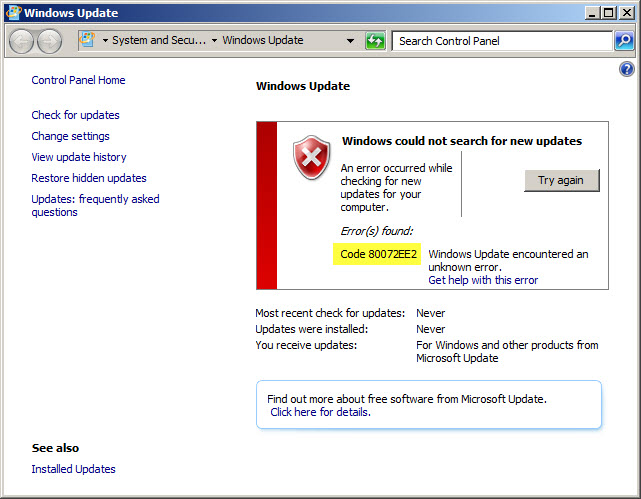
Running Windows Update on a TMG Firewall Fails with Result Code 80072EE2

Recently I have encountered a problem with the Windows Update client on a server with Forefront Threat Management Gateway (TMG) 2010 installed. The Error is: Windows could not search for new updates with error code: 80072EE2.

When this occurs, Malware Inspection and Network Inspection Systems signature updates are received without issue.

To resolve this issue, open an elevated command prompt and enter the following command:

netsh winhttp set proxy localhost:8080

If you need to configure Windows Update on the TMG firewall to work with WSUS, read this blog post on the Forefront TMG product team blog.

Microsoft Lync Server 2010 Capacity Calculator

lync-server-2010-logo2[1]

A handy spreadsheet for calculating a user’s hardware requirements based on information that the administrator supplies about number of users, types of communication and expected traffic has been made available by Microsoft. The download available by clicking here and the corresponding Microsoft Word document explains the tool and how to use it.

image

Exchange Management Console & IE9 issue fixed

The Exchange team made a fix available a fix to solve the issues when using the Management Console of Exchange 2007 or 2010 in conjunction with Internet Explorer 9.

As you probably know, when using Internet Explorer 9 you can’t close the Exchange Management Console properly as it gives you the error “You must close all dialog boxes before you can close Exchange Management Console” having no dialogs open.

To solve this issue, you had to use the Task Manager to force closing the EMC process using

To properly install the hotfix:

  1. Request hotfix ID 2624899 from support here. For a direct download link click here.
  2. Download and install MS11-081 (2586448). You can retrieve this update here.
  3. Install the hotfix ID 2624899.

Microsoft states it expects to incorporate this fix in a future update of Internet Explorer 9.

While releasing a fix for the IE9 issue is great after all these month, I can’t help but wonder why the fix has not been made public.

Migrate from Exchange Public Folders to Microsoft Office 365

Exchange public folders are widely used in on-premises Exchange environments. However, Microsoft® Exchange Online does not support customer usage scenarios of public folders. If you or your customers are using Exchange public folders, there are special considerations for migrating to Microsoft Office 365. This document outlines these considerations, discusses the most common public folder scenarios and how they are represented in Office 365 services. It also provides the information you need to decide whether Office 365 is a good match for you based on your current public folder usage.

Download: Migrate from Public Folders to Office 365.docx

Really Nice Overview What’s New in Exchange Server 2010

The Exchange Team created a really nice overview about What’s New in Exchange Server 2010.

Just Click on the Picture go to the Exchange Team site about What’s New in Exchange Server 2010.

image

DPM Error 30126 DPM could not find find a valid recovery point on disk Or ‘Replica Inconsistent’ showing against System State and Bare Metal Recovery on Protected Server

This error normally occurs due to one of the following two possible causes:

  • Not enough disk space is available on the protected machine to store a backup of the system state files
  • The Windows Server Backup feature is not installed on the protected machine (Windows 2008 or Windows 2008 R2)

Solution:
Simply install the Windows Server Backup feature on to the protected machine from Server Manager. Installation of this feature doesn’t normally require a reboot.

If the protected machine doesn’t have enough disk space to store a backup of the system state files (you’ll need 10-12Gb free on the system drive by default to store these files) you’ll need to create some space on the system drive, or add another disk to the machine and modify the PSDataSourceConfig.xml file to allow DPM to use the new location.

The PSDataSourceConfig.xml file is normally located at %SystemDrive%\Program Files\Microsoft Data Protection Manager\DPM\DataSources. Modify the <FilesToProtect> section of the xml file to point to the new drive added. Maybe that you may need to remove protection for the machine from the DPM 2010 console and then re-enable protection to get DPM to read the new location for backup files from the PSDataSourceConfig.xml file.

Exchange 2007 SP3 Update Rollup 5

Today the Exchange Team released Rollup 5 for Exchange Server 2007 Service Pack 3 (KB2602324). This update raises Exchange 2007 version number to 8.3.213.1.

Here’s the list of changes included in this rollup:

981820 New X-headers of a message item do not appear when the message item is retrieved by IMAP4 or by POP3 in an Exchange Server 2007 SP2 environment

2292150 A deleted hyperlink remains in the HTML source of an email message if you create the email message by using OWA in an Exchange Server 2007 environment

2411423 The Msftefd.exe process constantly consumes up to 100 percent of CPU resources when your mailbox language is set to German on an Exchange Server 2007 server

2450078 The sent time in an email message body is incorrect when you reply or forward the email message by using an EWS application in an Exchange Server 2007 environment

2451415 “There was a problem logging onto your mail server” error message when you use a POP3 client to access a mailbox in an Exchange Server 2007 SP3 environment

2536652 EdgeTransport.exe randomly stops responding on a Hub Transport server after you configure public folder replication in Exchange Server 2007

2536695 “Some items cannot be deleted” error message when you try to delete or modify an email message in a public folder in an Exchange Server 2007 environment

2536697 DBCS characters in a rule name are converted to question marks after you move a mailbox from Exchange Server 2003 to Exchange Server 2007

2537783 The EdgeTransport.exe process crashes occasionally after you install Update Rollup 2 for Exchange Server 2007 SP3

2538958 Extended Protection Warning Displayed in Exchange Management Console and Exchange Management Shell After Installing RU2 for Exchange 2007 SP3

2554575 Items accumulate in the MRM submission folder when managed folder assistant journal items in an Exchange Server 2007 environment

2556751 The EdgeTransport.exe process crashes when processing certain email messages on an Exchange Server 2007 Hub Transport server

2557304 The Store.exe process may consume excessive CPU resources and memory resources intermittently when a user opens a calendar item by using OWA in an Exchange Server 2007 SP3 environment

When running ForeFront Protection for Exchange, make sure you disable ForeFront before installing the rollup and re-enable it afterwards, otherwise the Information Store and Transport services may not start. You can disable ForeFront using fscutility /disable and enable it using the fscutility /enable command.

Note that update rollups are cumulative, i.e. they contain fixes released in earlier update rollups for the same product level (RTM, SPx). This means you don’t need to install previous update rollups during a fresh installation but can start with the latest rollup available right away.

You can download Exchange 2007 SP3 Rollup 5 here.

Translate »