Exchange 2010 Hiding a Distribution Group from the Exchange Address List

Some times you want to hide a Distribution Group from de Global Address List (GAL).
In Exchange 2010 this is a simple thing
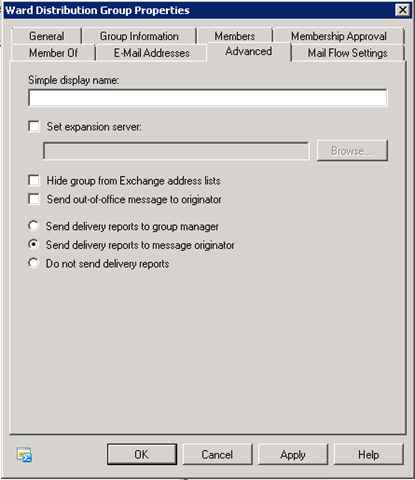
1. Open the properties from the Distribution Group.

2. Go to the Tab Advanced
image

3. Set V by Hide group from Exchange address list

image

Certificate Manager for Exchange 2007

Exchange 2007 enables SSL within IIS by default. Using PowerShell commands, certificate creation and management is quite confusing and often results with incorrect results due to the nature of the syntax. U-BTech Solutions is providing Certificate Manager for Exchange Server 2007 freely, to ease the process with a simple, easy to use GUI which enables you to:

1) Manage your current server certificates.
2) Enable certificates for Exchange 2007 Services (POP, IMAP, SMTP, IIS, UM).
3) Generate an Exchange 2007 Certificate Signing Request and process the Certificate Authority answer.
4) Generate an Exchange 2007 Self-Signed certificate (not for production use).
5) Easily include additional subject names in a single certificate.
6) Import & Export ability for existing certificates.
To read more about Certificate Use in Exchange 2007 at Microsoft TechNet follow the link:

Certificate Manager for Exchange Server 2007 is currently offered by U-BTech Solutions free of charge

certificate-manager-main-menu[1]

Certificate Manager for Exchange Server 2007 Flash Demonstration

Download – Certificate Manager for Exchange 2007

SOURCE

Microsoft Remote Desktop Connection Manager for Free

Microsoft has released a new free tool named Remote Desktop Connection Manager.
image 

Features:
– You can set user, password and domain on a group and every server in that group you add they inherit the same settings this is very handy when you have a lot of servers.
– Bulk import servers is possible with txt files.
– Export the settings

You can Download Remote Desktop Connection Manager Here

Windows Server 2008 R2: Hyper-V Component Architecture Poster

The Hyper V documentation team has done a great job of putting together a detailed Windows Server 2008 R2: Hyper-V Component Architecture Poster.  Download the .PDFimage

The poster provides details on the inner workings of things like:

  • Virtual Networking
  • Virtual Storage
  • Live Migration
  • Virtual Machine Snapshots
  • Virtual Machine File Management

Outlook 2007 Autodiscovery Warning when using SRV record for Autodiscover

Sometimes when you open Outlook 2007 using a autodiscover srv record for Exchange 2007 you wil get de following error:

autodiscover_warning_message 

Solution 1:

1. Close Outlook 2007
2. Start Registry Editor
3. In Windows 7, click Start –> RUN
4. type regedit in de box and then click OK
5. Collapse this imageExpand this image
6. HKEY_CURRENT_USER\Software\Microsoft\Office\12.0\Outlook\AutoDiscover
7. Click the Edit menu, point to New, and then click String Value.
8. Type RedirectServers, and then press ENTER
9. Right-click RedirectServers, and then click Modify.
10. In the Value data box, type a semicolon delimited list of the HTTPS servers to which AutoDiscover can be redirected without prompting for confirmation from the user, and then click OK.
For example, you want to allow for the following list of servers:
  – https://wardvissers.nl
  – https://wardvissers.local
11.Type the following in the Value data box: wardvissers.local;wardvissers.nl
12. On the File menu, click Exit to exit Registry Editor

Solution 2:
Setting the registry key with group policy preferences.
clip_image002

When trying to activate you get 0xC004F074 with description "The Key Management Server (KMS) is unavailable"

Error:
image

The KMS host that is used is very probably a Windows Server 2008 KMS host that cannot standard activate Windows 7 and 2008 R2 machines.

When you do not have Windows Server 2008 R2 KMS host key have then you must have a Volume License agreement so that your request your Windows 7 and Windows 2008 R2 kms keys.

Resolution

Step 1:
-If the KMS host a Windows Server 2003 SP2 machine is you have the update from the KB article KB968915 install and restart the machine.
-If the KMS host a Windows Server 2008 SP2 machine is you have the update from the KB article KB968912 install and start the new machine.
-If the KMS host one Windows Server 2008 R2 machine is you have to install any further update.

Step 2:
You the new KMS host key import now. The commands are as follows:

1. Uninstall KMS license Key on host – slmgr.vbs /upk

2. Install Windows Server 2008 R2 KMS license key – slmgr.vbs /ipk <Your Key>

3. Activate KMS server online: slmgr.vbs /ato

4. Net Stop slsvc

5. Net Start slsvc

The clients can now activate
Hyper-V R2 NLB Error: the interface is mis configured

The Microsoft’s current documentation you’ll still need to shutdown your guest OS. First up, unless your Guest OS is also R2, you’ll need to install the hotfix noted above. However, rather than having to note the cluster’s MAC address, you’ll simply need to change the Hyper-V guest settings to enable MAC Spoofing on the NIC which you configured for NLB:

BitLocker Active Directory Recovery Password Viewer on Windows Server 2008 R2

You can find BitLocker Password Recovery tool on Windows Server 2008 R2 under Features. You can install the tool by opening Server Manager and under »Add Features« look for »Remote Server Administration Tools« »Feature Administration Tools«. Here select »BitLocker Diver Encryption Administration Utilities« and follow the wizard.

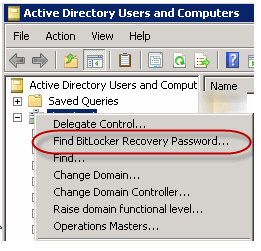
Once install process completes you can open Active Directory Users and Computers and right click on domain level. You should now see »Find BitLocker Recovery Password…«

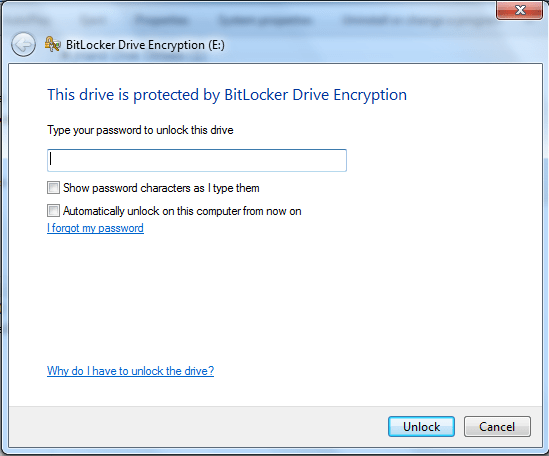
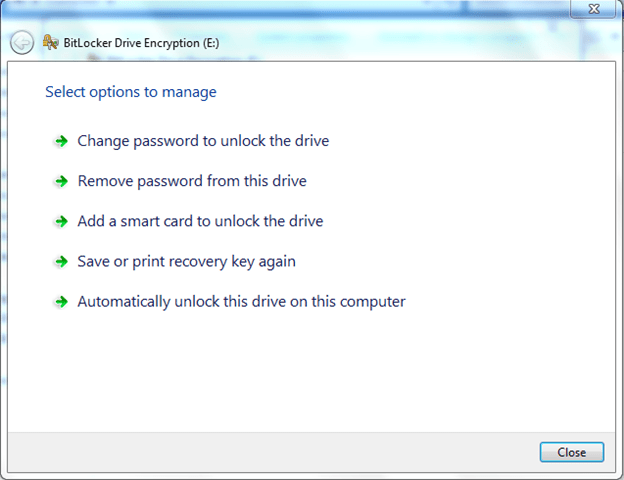
Recovering USB Stick that is encrypted with Bitlocker

1
WWWOooeeeps I forgot my password for my USB stick .

What we do next: I forgot my Password
 2 3

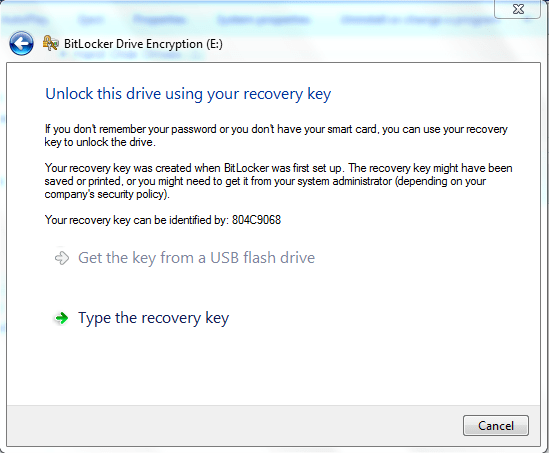
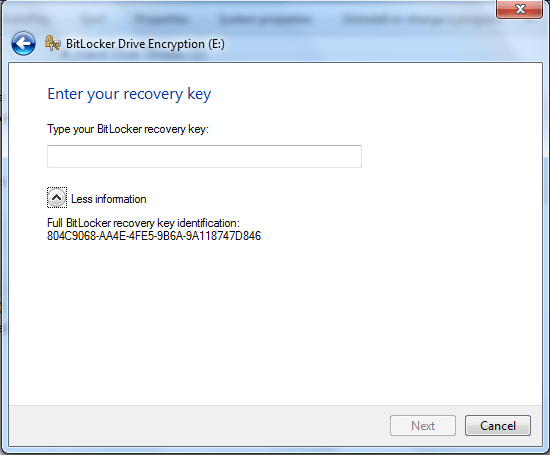
Click on More Information: Hey I found a recovery key
4
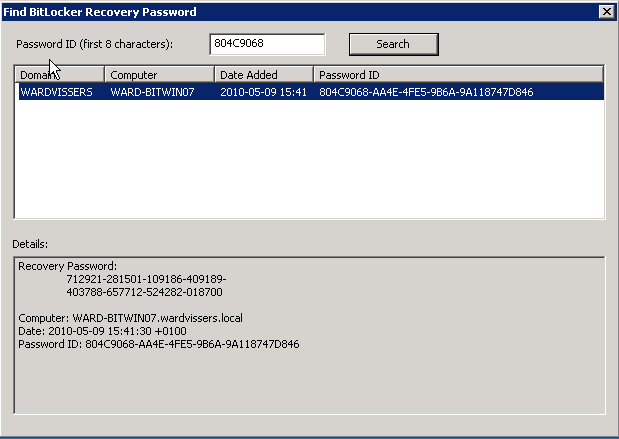
Then you go to Active Directory Users And Computers
image image

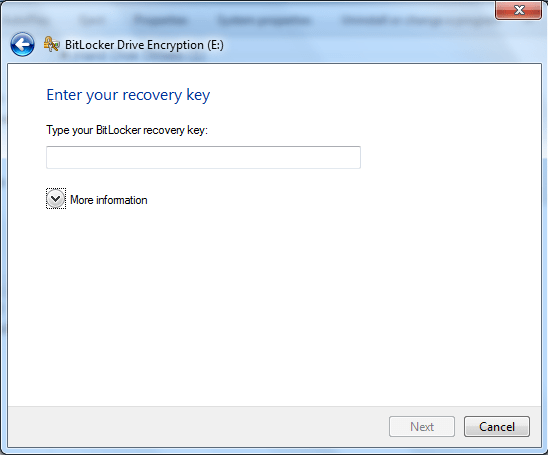
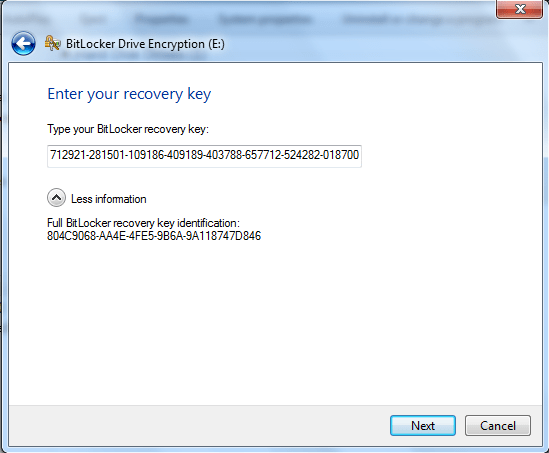
Next Enter the the recovery key
5 

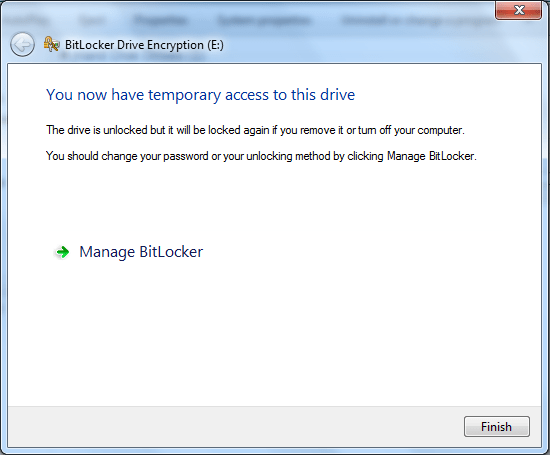
YES: My data is readably
 6

Last Step: Changing your password 
 7

Migrate a DFS Namespace to Windows Server 2008 Mode

When you plan to use to upgrade your DFS domain namespace to 2008 Mode there are some requirements:
– The forest uses the Windows Server 2003 or higher forest functional level
– The domain uses the Windows Server 2008 or higher domain functional level
– All namespace servers are running Windows Server 2008 or (2008 R2)

1. Installing latest DFS Hotfix on servers where Distributed File System (DFS) technologies is installed
2. Dfsutil root export \\domain\namespace path\filename.xml
3. Remove all Namespace Servers
4. Dfsutil root remove \\domain\namespace
5. Dfsutil root adddom \\server\namespace v2
6. Dfsutil root import merge path\filename.xml \\domain\namespace
7. Add all Namespace servers
8. Tuning replication performance in DFSR (especially on Win2008 R2)

Translate »